
Cases Created Report
The Cases Created report in Analytics > Search Analytics > Overview displays all cases logged on your ticketing platform (such as Salesforce or Zendesk). The report contains the following columns, listed from left to right:
- # (): Shows the total number of cases created in the selected period. The count appears in parentheses.
- SearchUnify Case ID: A unique case ID generated by SearchUnify. This is not the same as the case ID in Salesforce, Zendesk, or any other ticketing platform. This column is searchable.
- Case Title: Displays the subject of the case. This column is searchable.
- Session ID: Shows the SearchUnify session in which the case was created. This column is searchable.
- Email ID: The email address of the user who created the case. This column is searchable.
- User: Indicates whether the user is Internal (employee) or External (customer).
- Date Time: Displays the timestamp when the case was created.
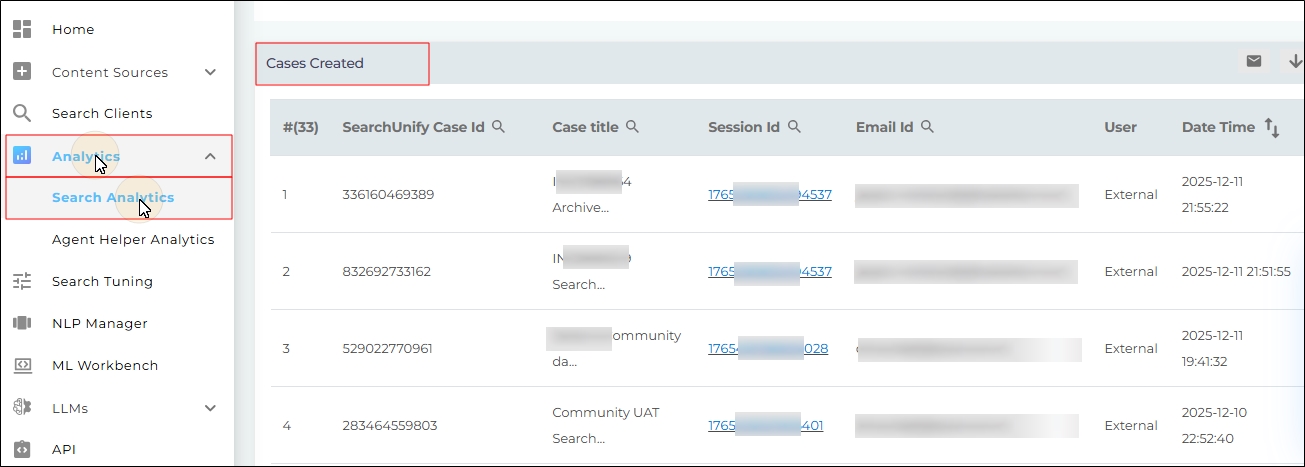
Fig. A snapshot of the Cases Created report.
Clicking any row in the Session ID column opens a dialog that displays detailed user activity for that session in two tables.
The top table provides a high-level overview of the session:
- Session ID: The ID of the search session.
- Searches: The total number of searches performed in the session.
- Clicks: The total number of clicks made on the search results page during the session.
- Support Visit: Displays true if the user visited the support page and false otherwise.
- Cases Logged: The total number of cases created in that session.
The second table lists all user actions captured during the session.
- Activity Type: Shows the type of action performed. It can have one of the following values:
- Text Searched: Displays the query searched by the user.
- Text Search (Support Page): Displays the query searched on the support page.
- Viewed Page: Displays a link to the page viewed by the user.
- Visited Support: Displays a link to the support page visited by the user.
- Created a Case: Displays the subject of the case created.
- Click Search Result: Displays the URL of the clicked search result.
- Activity Details: For Text Searched and Text Search (Support Page), this column shows the keyword searched. For all other activity types, it displays a link to the visited page.
- Time: Displays the timestamp when the activity occurred.
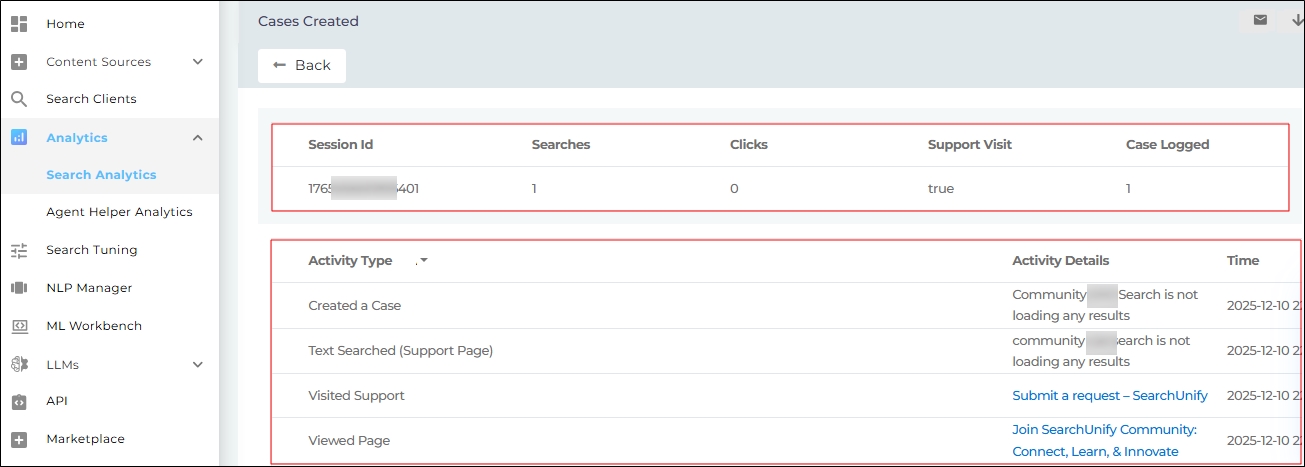
Fig. A snapshot of the Session Details in the Case Created report.
Download or Share
Check out Download and Share an Analytics Report