

AI Escalation Manager Analytics - Open Cases
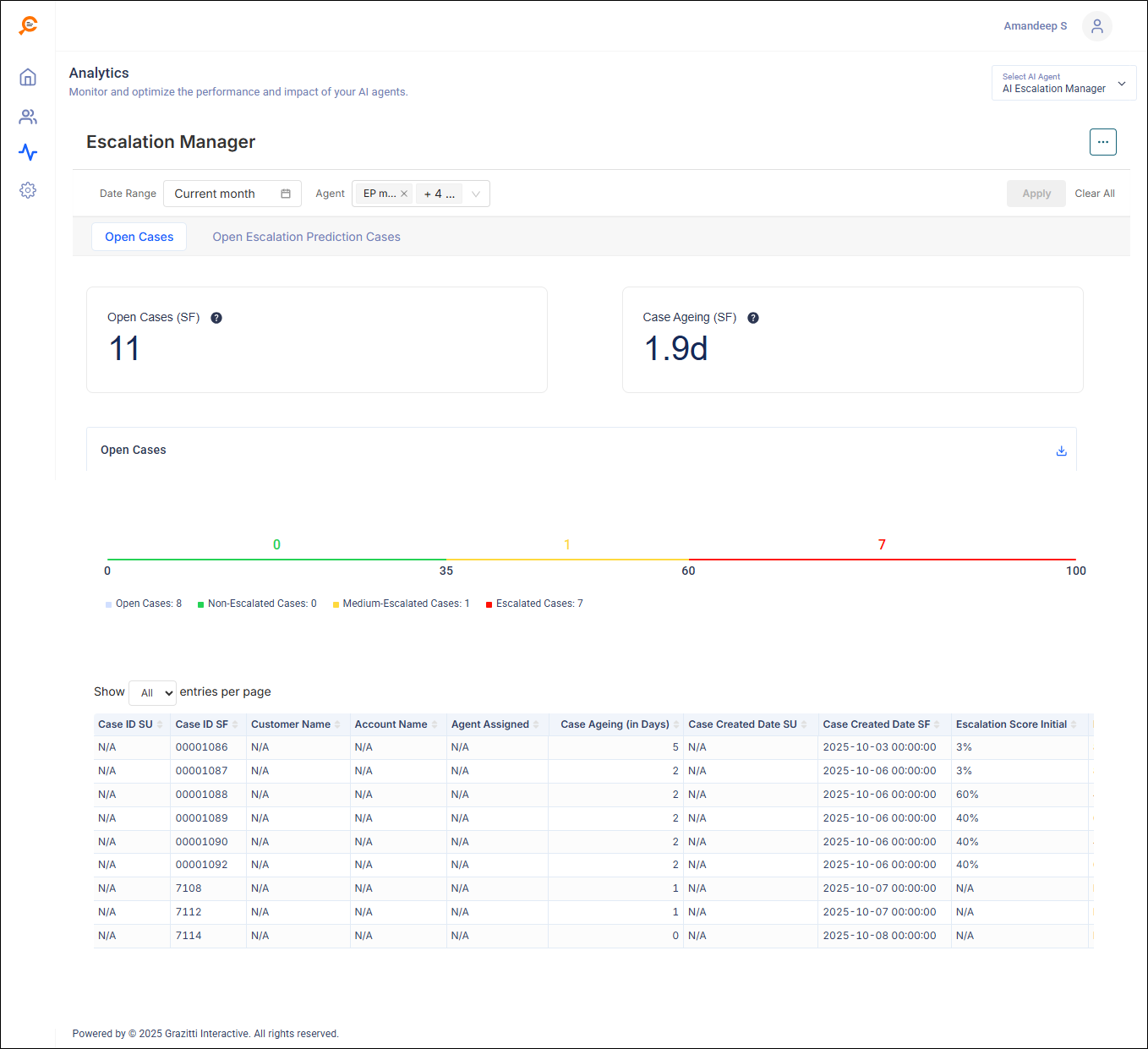
This article walks you through the AI Escalation Manager analytics report that is useful to monitor your open case load, understand escalation risk, and drill into individual cases.
Note: Values shown in screenshots are illustrative. Your environment will display live data.
Filters
You can sort the report for a selected Date Range and for a specific Agent (single or multi-select).
Use Apply to apply the filters and Clear All to reset the filters.
KPI Cards
-
Open Cases (SF)
Count of Salesforce cases currently open within the selected filters.
-
Case Ageing (SF)
Average age (in days) of open cases.
Example: 1.9d ≈ ~2 days on average.
Admin tip: Track these KPIs over time to confirm that your policies and workflows are reducing open volume and keeping case age low.
Open Cases Scoreband
A color bar shows how open cases are distributed by Escalation Score (0–100):
-
Green = Non-Escalated (0–34)
-
Amber/Yellow = Medium-Escalated (35–59)
-
Red = Escalated (60–100)
Download: Click the download icon near the chart to export the view.
Open Cases Table
A paginated list of open cases that match your filters. Columns:
-
Case ID SU — SearchUnify case identifier (if available).
-
Case ID SF — Salesforce case number/ID.
-
Customer Name — Contact/requester (may show N/A if not synced).
-
Account Name — Customer account (may show N/A for community/consumer users).
-
Agent Assigned — Current assignee in Salesforce.
-
Case Ageing (in Days) — Days since case creation.
-
Case Created Date SU — Creation timestamp indexed by SearchUnify (if available).
-
Case Created Date SF — Source-of-truth creation timestamp from Salesforce.
-
Escalation Score Initial — Model’s risk score when the case entered the queue.
Note: You’ll see N/A in two scenarios:
The field doesn’t exist in the source,
You don’t have permission to view it.
How to Use This Report
For Support Managers Agents
-
Sort by risk first: Sort the table by Escalation Score to work the highest-risk items first.
-
Check age + risk: If a high-risk case is also older than your SLA target, address it immediately.
-
Work red, then amber: Prioritize Escalated (red) and Medium-Escalated (amber) before green.
-
Keep notes current: Clear updates reduce repeat escalations and improve model signals.
For Admins/Team Leads
-
Trend the KPIs: Watch Open Cases and Case Ageing after process or staffing changes.
-
Check the case mix for risks: If the red segment is large, it may point to systemic problems—validate triage rules, SLAs, or backlog processes.
-
Drill by agent: Use the Agent filter to spot coaching opportunities (e.g., high age + high risk).
-
Export for reviews: Download the bar or table for weekly ops reviews.
Permissions
-
You will only see cases and fields allowed by your Salesforce permissions.
-
Analytics respects tenant-level permissions and index visibility.
-
Sensitive fields appearing as N/A are typically permission-related.