

AI Escalation Manager Analytics - Open Escalation Prediction Cases
Use this report to monitor which open cases are at risk of escalation, how long escalations have been active, and where to focus effort.
Note: Values shown in screenshots are illustrative. Your environment displays live data.
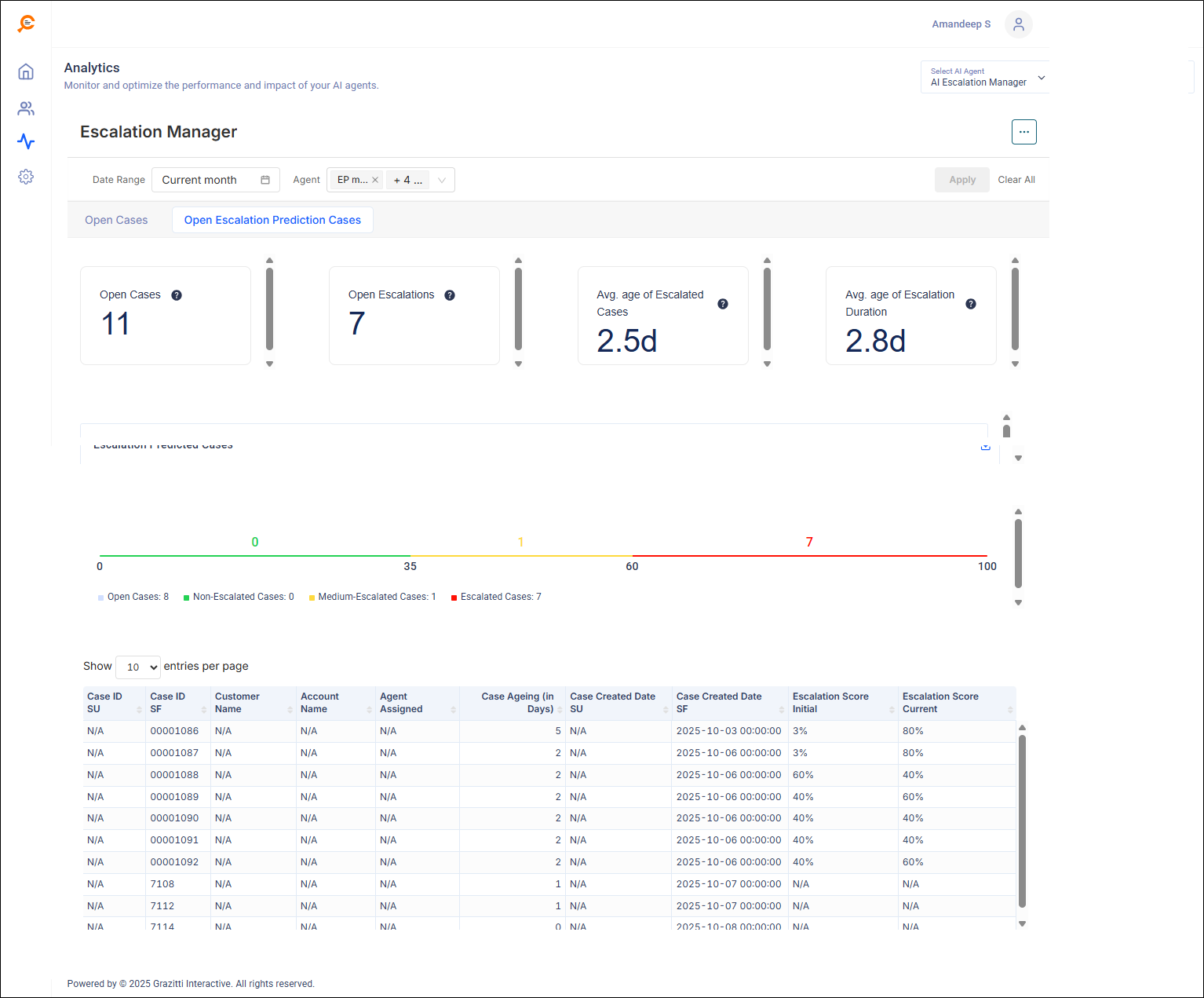
Filters
-
Date Range and Agent (single or multi-select).
-
Use Apply to refresh reports data and Clear All to reset.
KPI Cards
-
Open Cases
Total open cases in the crm. (based on filters).
-
Open Escalations
Open cases that are currently escalated per your rules.
-
Avg. age of Escalated Cases
Average time (days) since creation for cases that are escalated right now.
Example: 2.5d.
-
Avg. age of Escalation Duration
Average time (days) that the current escalations have been escalated (from the moment each case entered escalation to now).
Example: 2.8d.
Admin tip: If Open Escalations is flat but Avg. age of Escalation Duration rises, escalations are lingering—review staffing, SLAs, or blockers.
Escalation Predicted Cases Bar
A color-coded bar shows how open cases are distributed by Escalation Score (0–100):
-
Green = Non-Escalated (0–34)
-
Amber/Yellow = Medium-Escalated (35–59)
-
Red = Escalated (60–100)
Use the download icon near the chart to export the view.
Escalation Predicted Cases Table
A paginated list of in-scope open cases. Columns:
-
Case ID SU — SearchUnify internal case identifier (if available).
-
Case ID SF — Salesforce case number/ID.
-
Customer Name — Contact/requester (may show N/A if not synced).
-
Account Name — Customer account (may show N/A for community/consumer users).
-
Agent Assigned — Current owner/assignee.
-
Case Ageing (in Days) — Days since case creation.
-
Case Created Date SU — Creation timestamp indexed by SearchUnify.
-
Case Created Date SF — Source-of-truth creation timestamp from Salesforce.
-
Escalation Score Initial — Risk score when the case was created/ or the conversation started if using L1 agent case entered the open queue.
-
Escalation Score Current — Latest risk score based on recent signals.
Note: You’ll see N/A in two scenarios:
The field doesn’t exist in the source,
You don’t have permission to view it.
How to Use This Report
For Support Managers/Agents
-
Triage by risk: Sort by Escalation Score Current to address highest-risk cases first.
-
Check age vs. risk: Prioritize cases that are red and older than your SLA targets.
-
Stabilize escalations: For already-escalated cases, add clear updates, confirm next steps, and set expectations to drive the score down. Also, the timely alerts are shared on the given email address.
For Admins / Team Leads
-
Read the four KPIs together:
-
Open Cases and Open Escalations indicate volume.
-
Avg. age of Escalated Cases and Avg. age of Escalation Duration indicate timeliness.
-
-
Coach via deltas: Compare Initial vs Current scores. If many cases trend upward, revisit triage, coverage, or staffing.
-
Drill by agent: Use the Agent filter to spot outliers (high current scores + high ageing).
-
Export for reviews: Download the bar or table for weekly ops reviews and action plans.
Permissions
-
You’ll only see records and fields allowed by your Salesforce permissions.
-
Analytics respects tenant visibility rules and index scope.