

Deploying AI Escalation Manager: Installation in Salesforce Service Console
This article walks you through installing the AI Escalation Manager to your Salesforce Service Console to enhance self-service with the SearchUnify Agentic Suite.
Prerequisites
-
Create a Remote Site to whitelist your service endpoint
Note: The SearchUnify service endpoint can be obtained from the Steps to Deploy instructions as given below.
Installation Steps
Follow the instructions given in the Steps to Deploy section under the Deployment tab.
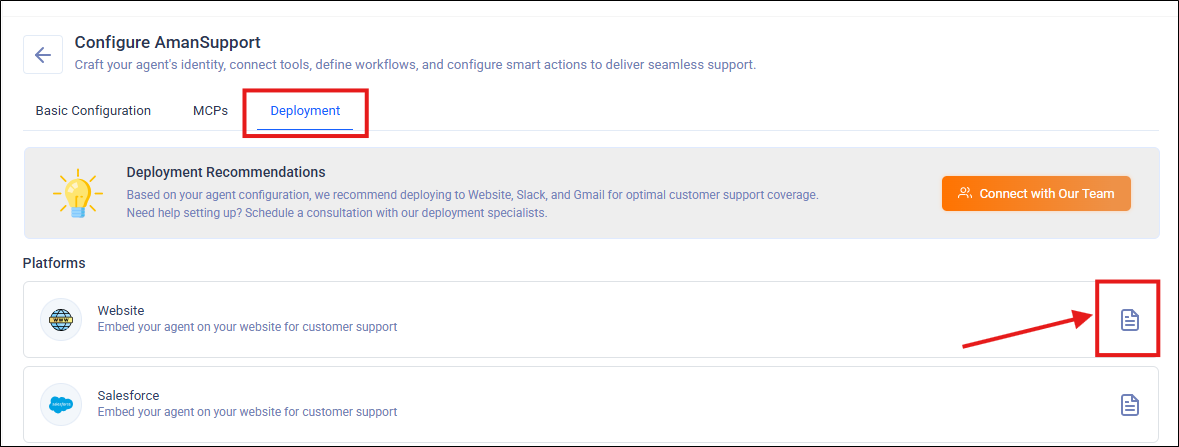
Note: To find your AI Agent UID, refer to the Steps to Deploy instructions of your AI Agent.
Adding a Trigger for Escalation Manager Agent
To test AI Escalation Manager in Salesforce, add a trigger for when a comment is added to a case. Adding a trigger sends an HTTP callout when a Case is marked as Closed.
Step 1: Create the Apex Class for the HTTP Callout
-
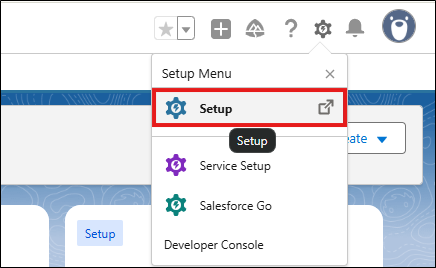
Navigate to Setup.
-
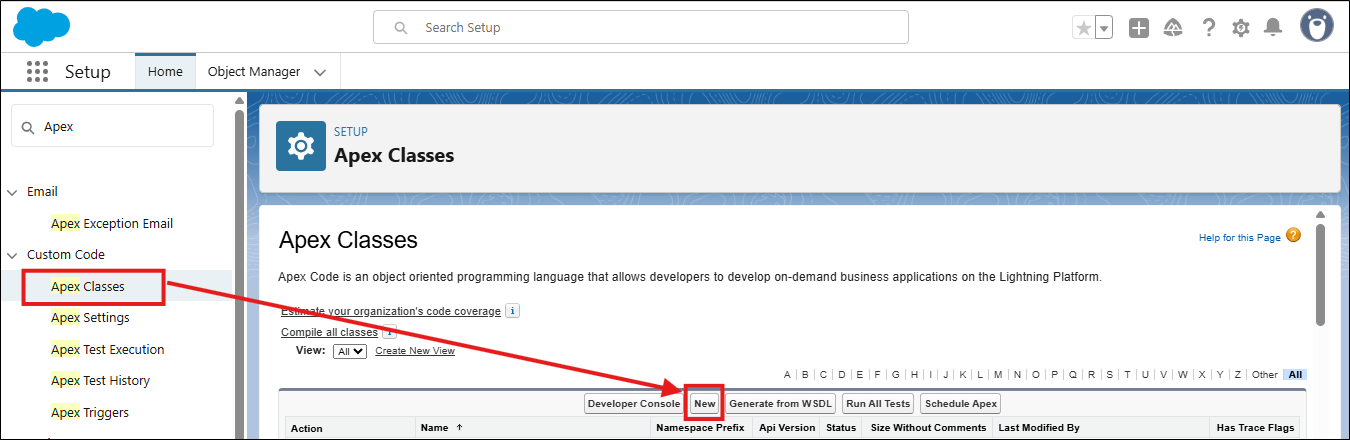
Search Apex Classes from Quick Find, and click New to create a new Apex class.
-
Paste the class shared in the Steps to Deploy instructions here and press Save.
Step 2: Create the Apex Trigger
-
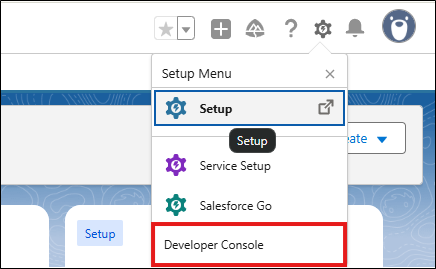
Navigate to Developer Console.
-
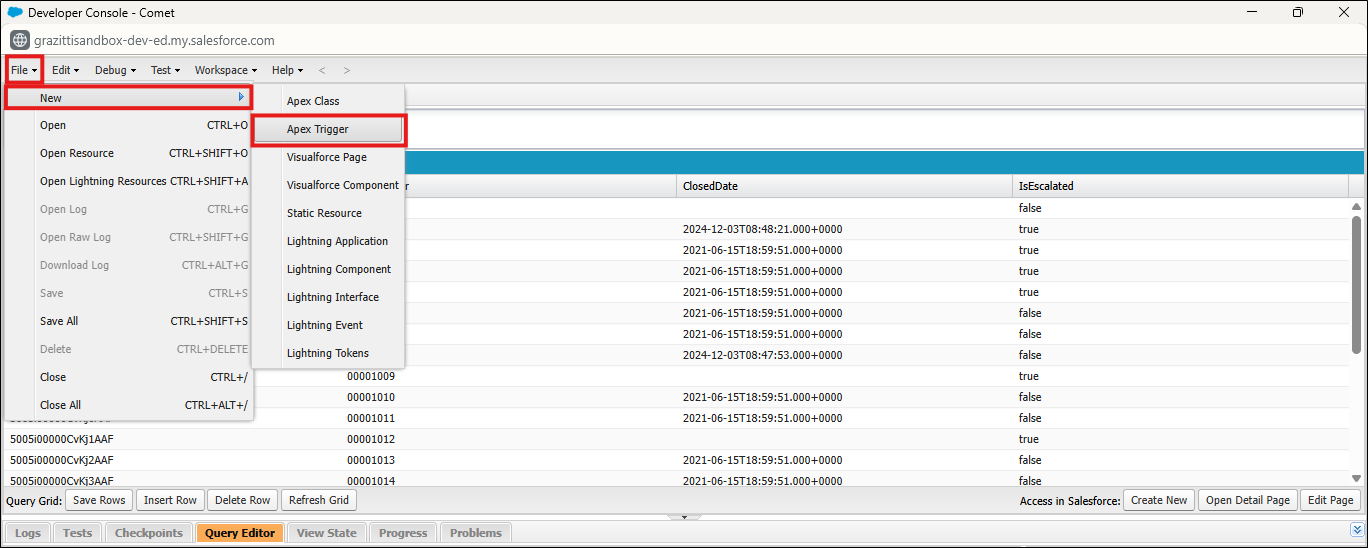
Click File → New → Apex Trigger.
-
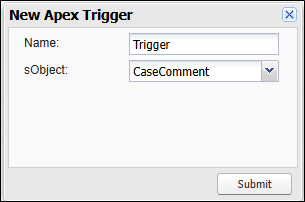
Give a Name to your Apex Trigger, choose CaseComment as sObject, and click Submit.
-
Paste the code given in the Steps to Deploy instructions and click Save.
Test the Trigger
To test the trigger, add and post a comment on a case.