

Manage Conditions in Microsoft Dynamics
Manage Conditions allows you to restrict searches to specific data based on one or more conditions. For example, you can limit the search to incidents that fall under a specific category.
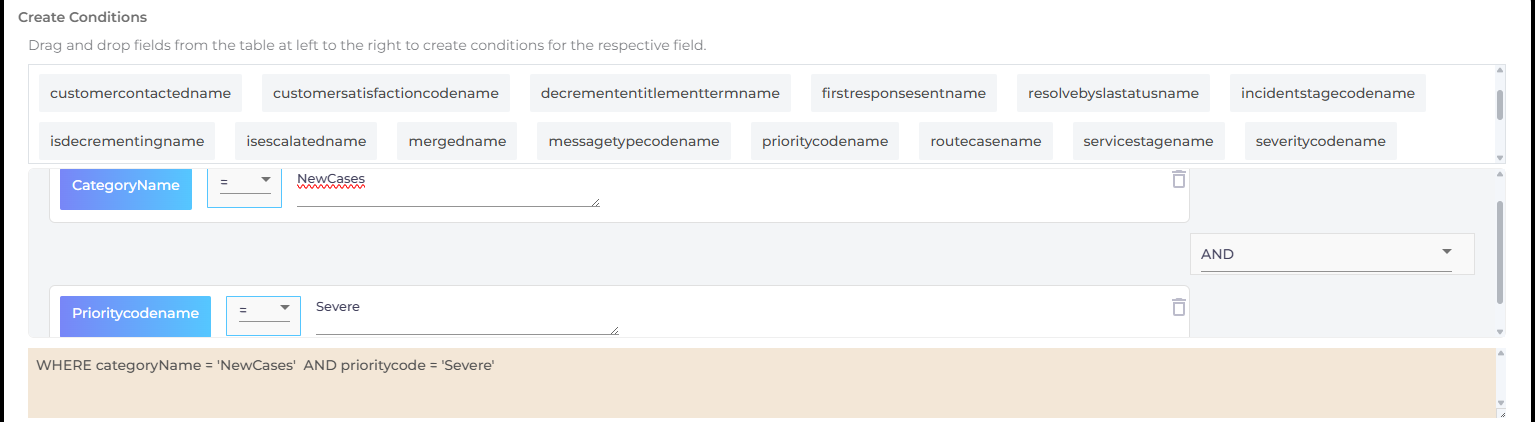
Fig. A snapshot of a configuration where search is confined to "NewCases" category.
Each Microsoft Dynamics object has its own Manage Conditions button, meaning the conditions applied to each entity run independently. This allows you to confine searches to, for example, Incidents created in the past week and Knowledge Articles approved in the past month without the risk of overlap.
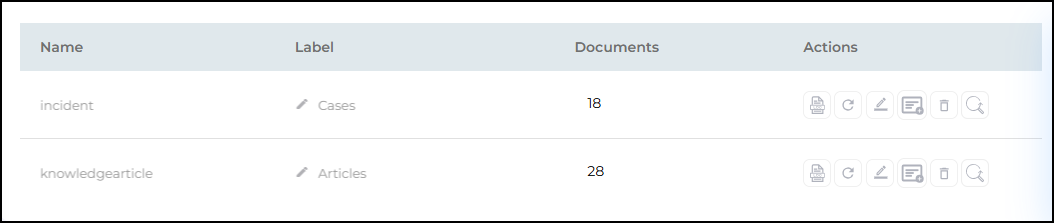
Fig. A snapshot of the Management Conditions button on the Rules tab.
Configure Manage Results
To illustrate the principle, this article shows how to configure the Incident object of your Microsoft Dynamics content source so that the search client fetches only "Severe" cases that are categorized as "New Cases."
Prerequisites: You must have already added the Microsoft Dynamics content source and selected the relevant objects for indexing.
-
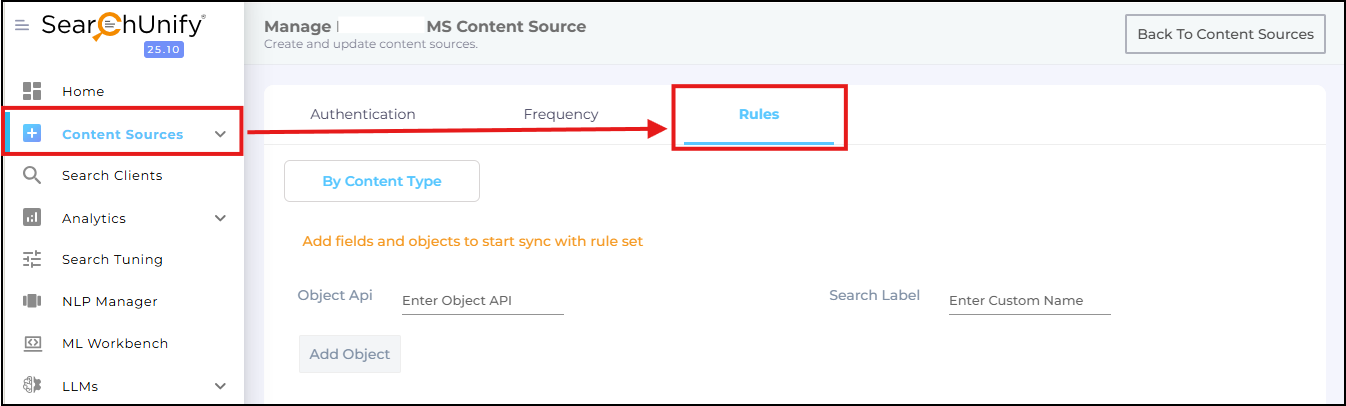
Go to Content Sources. Open your Microsoft Dynamics content source for editing and navigate to the Rules tab.
-
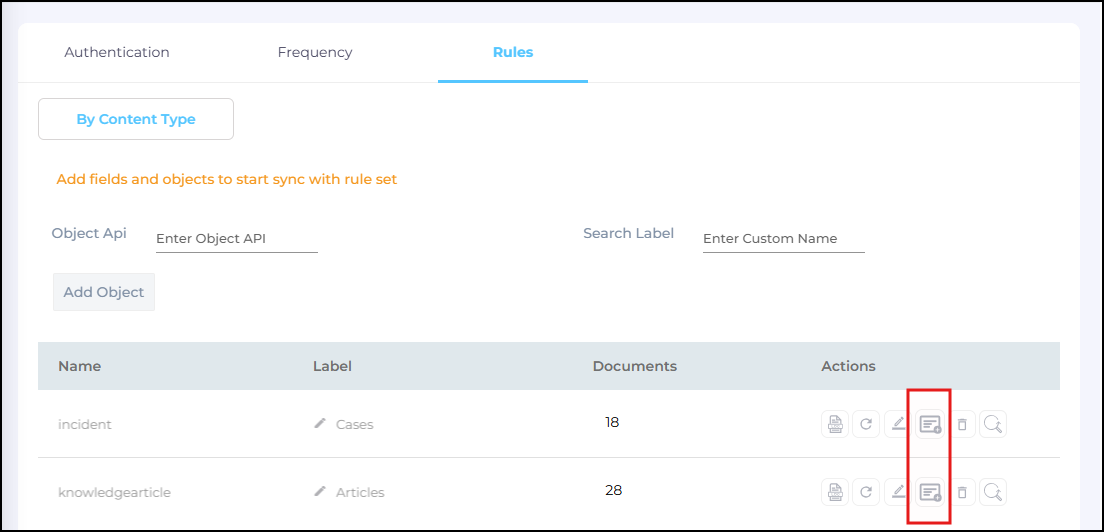
Click Manage Conditions on an object (e.g., Incident or Knowledgearticle).
-
Drag and drop fields to the gray area to start creating conditions. In this example, CategoryName has been dragged to the workspace area. The Equals (=) operator has been selected and "NewCases" has been entered in the value field.
-
Next, drag Prioritycodename to the workspace area. Select the Equals (=) operator and enter "Severe" in the value field. To ensure the search results match both criteria, select AND from the logical operator dropdown menu on the right.
-
Review the formula generated at the bottom:
CopyWHERE
categoryName = 'NewCases' AND prioritycode = 'Severe'This formula reads: "Show only those items where the Category Name is 'NewCases' AND the Priority Code is 'Severe'."
-
Click Save.
Field Operators
Manage Conditions provides several operators to help refine your search queries:
-
Equals (=): Returns documents where field values are exactly equal to the text entered.
Example: Prioritycodename = Severe
-
Not Equals (!=): Returns documents where field values are not equal to the text entered.
-
Includes (IN): Returns documents where field values contain the text entered (useful for partial matches).
-
Greater Than (>): Returns documents where field values are greater than the number entered.
-
Less Than (<): Returns documents where field values are smaller than the number entered.
-
Greater Than or Equals To (>=): Returns documents where field values are greater than or equal to the number entered.
-
Less Than or Equals To (<=): Returns documents where field values are smaller than or equal to the number entered.
-
Doesn’t Include (NOT IN): Excludes documents that contain a particular substring or value in the field.