

Set Up SearchUnify MCP (Admins)
This article explains how to set up SearchUnify MCP for admin-managed use.
To use SearchUnify MCP, you need:
-
Your SearchUnify instance URL
-
A Search Client UID that you want to integrate with the SearchUnify MCP
-
An MCP-compatible AI client
-
Required API scope access
-
Valid authentication credentials - SearchUnify Admin Panel’s Username and Password.OAuth Client ID and OAuth Client Secret, if using the admin login flow
To obtain the OAuth Client ID and OAuth Client Secret, create an API Client in SearchUnify. The current API Client documentation explains that users can create an API Client to generate a Client ID and Client Secret.
Important
-
For SearchUnify MCP admin setup, enter the following redirection URL when creating the API Client: https://mcp.searchunify.com/su-callback
-
Select ALL for Scope to use all tools or or select any specific scope based on what tool(s) you want to use like Search, Analytics, etc.
Note: If you plan to run the MCP server locally, Docker is also required.
Admin Use
Admin Use is recommended when an administrator wants to connect SearchUnify MCP to supported AI applications without manually configuring local Docker or JSON-based MCP settings.
Admin Use currently supports:
-
Claude custom connector
-
ChatGPT custom MCP app
Prerequisites for Admin Use
Before you begin, make sure you have:
-
Access to the Claude or ChatGPT account where the connector or app will be configured
-
Instance URL of your SearchUnify admin panel
-
The UID of the Search Client that you want to integrate with the SearchUnify MCP
-
OAuth Client ID
-
OAuth Client Secret
To obtain the OAuth Client ID and OAuth Client Secret, create an API Client in SearchUnify. The API Client article explains how users can create an API Client to generate a Client ID and Client Secret.
When creating the API Client:
-
Set the redirection URL to https://mcp.searchunify.com/su-callback
-
Select ALL for Scope to use all tools or select any specific scope based on what tool(s) you want to use like Search, Analytics, etc.
-
Save the API Client
-
Copy the generated Client ID and Client Secret
Set Up SearchUnify MCP in Claude
-
Log in to Claude.
-
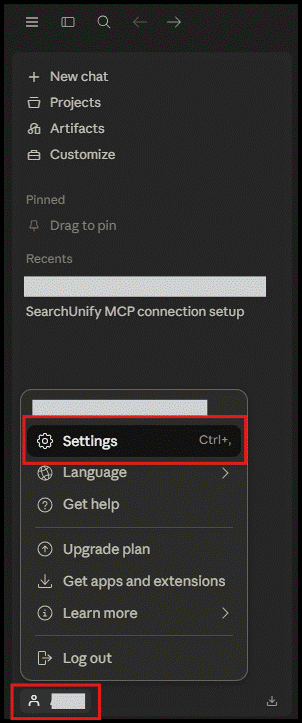
Navigate to Profile > Settings.
-
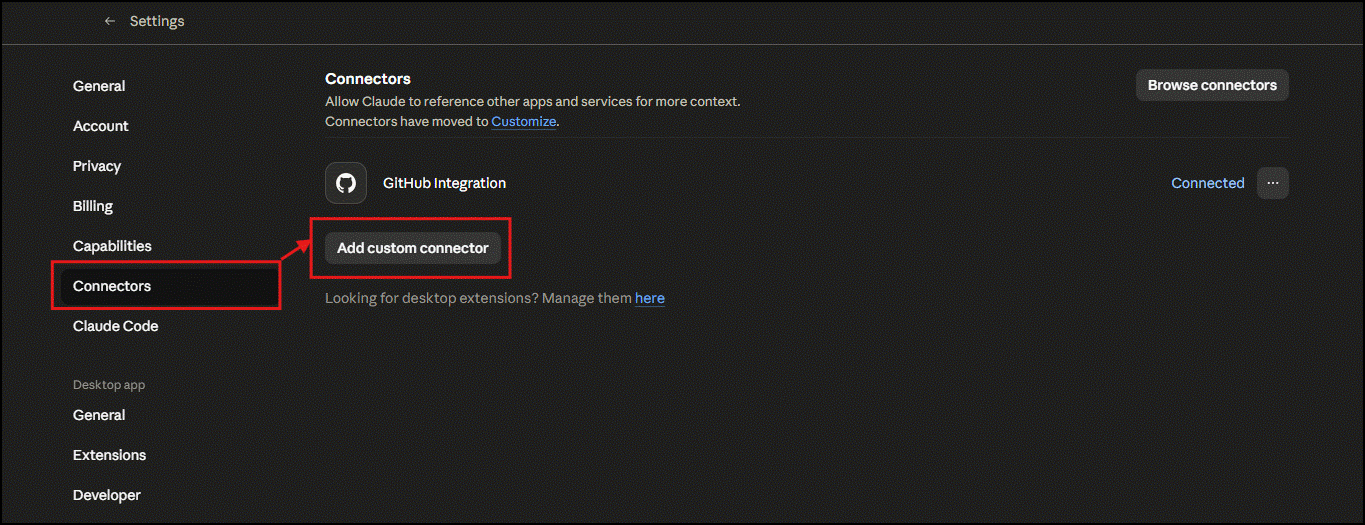
Select Connectors.
-
Click Add custom connector.
-
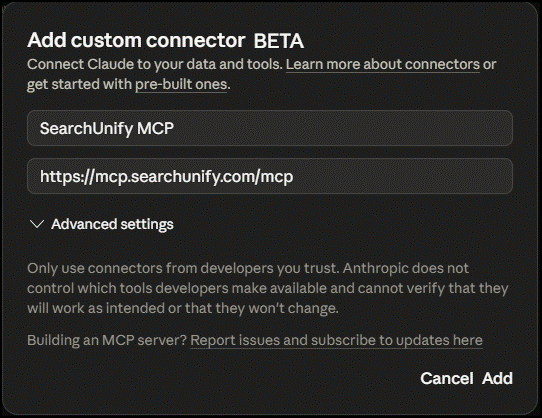
Enter a connector name.
-
In Remote MCP server URL, enter: https://mcp.searchunify.com/mcp
-
Click Add.
-
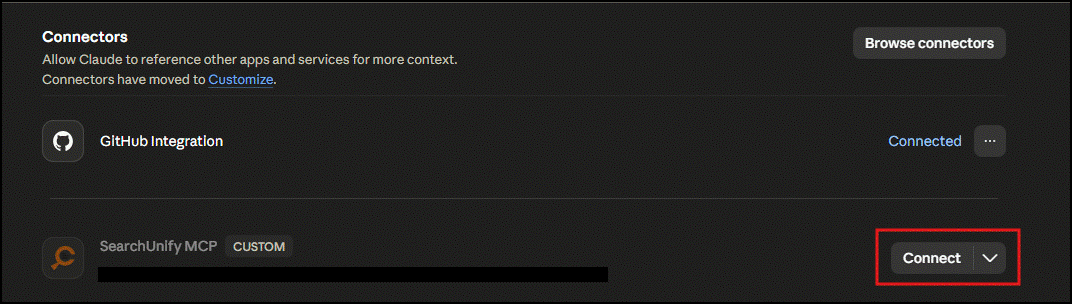
After the connector is added, click Connect.
-
You are redirected to a SearchUnify MCP login page.
-
Enter the following details:
Field Description Instance URL Your SearchUnify instance URL Search Client UID UID of the search client that MCP should use to fetch information OAuth Client ID Client ID generated from the SearchUnify API Client. Reference Doc: Get Client ID and Client Secret with an API Client OAuth Client Secret Client ID generated from the SearchUnify API Client. Reference Doc: Get Client ID and Client Secret with an API Client 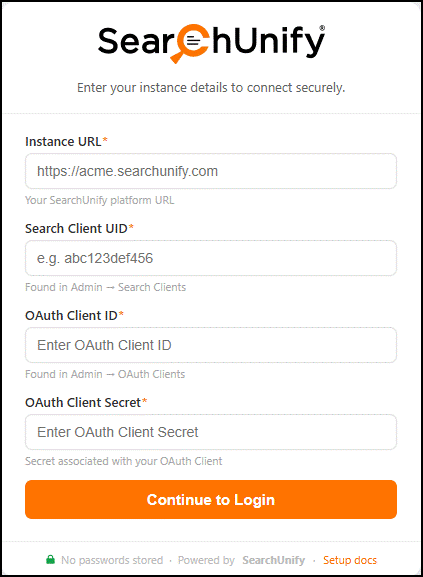
-
Click Continue to Login.
If the entered details are correct, a connection success message appears.
SearchUnify MCP is now connected to Claude.
Set Up SearchUnify MCP in ChatGPT
-
Log into ChatGPT.
-
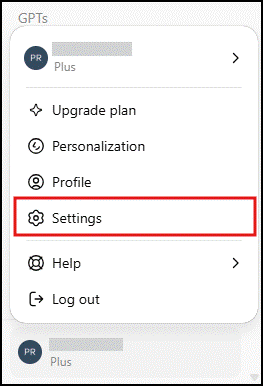
Navigate to Profile > Settings.
-
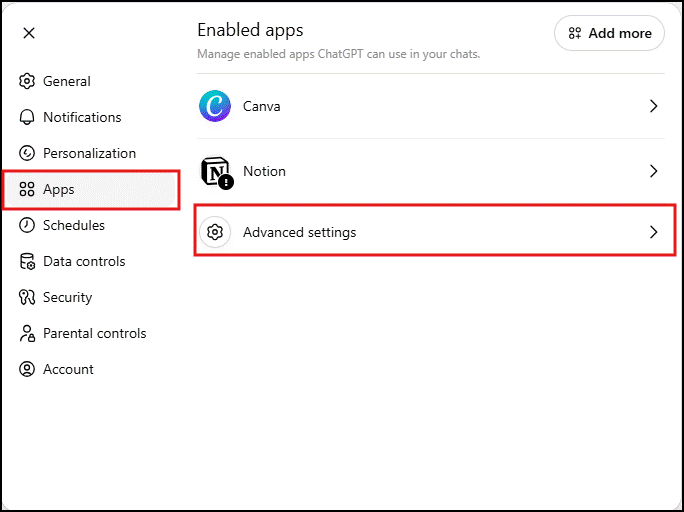
Select Apps.
-
Go to Advanced Settings.
-
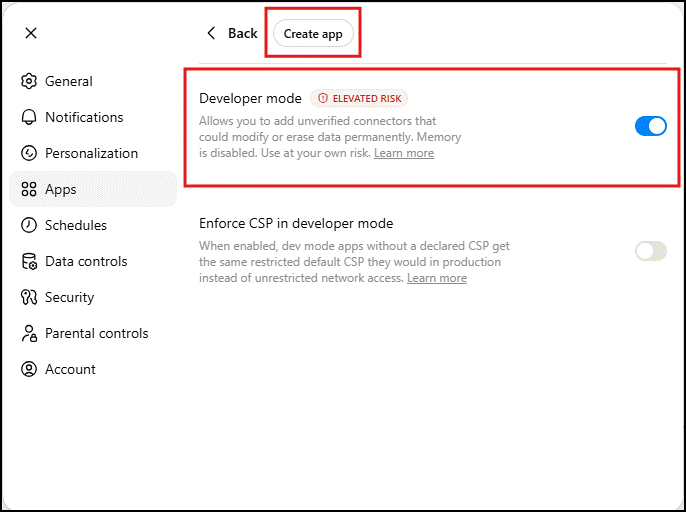
Enable Developer Mode.
-
Click Create App.
-
Enter the following details:
Field Value Name Enter a name for the app MCP Server URL https://mcp.searchunify.com/mcp Authentication method Select the required authentication method -
Select the checkbox confirming that you understand the risk and want to continue.
-
Click Create.
-
You are redirected to a SearchUnify MCP login page.
-
Enter the following details:
Field Description Instance URL Your SearchUnify instance URL Search Client UID UID of the search client that MCP should use to fetch information OAuth Client ID Client ID generated from the SearchUnify API Client OAuth Client Secret Client Secret generated from the SearchUnify API Client -
Click Continue to Login.
If the entered details are correct, a connection success message appears.
SearchUnify MCP is now connected to ChatGPT.
Use SearchUnify MCP in Claude or ChatGPT
After SearchUnify MCP is connected:
-
Start a new chat.
-
Click the plus (
 ) icon.
 -
For Claude, select Connectors > [Your Connector Name] for Claude and for OpenAI ChatGPT, select More > [Your App Name].
-
Select the app or connector using the name you provided during setup.
-
Continue the conversation and ask the assistant to use SearchUnify MCP.
Example prompts:
-
Search SearchUnify for installation articles related to SSO.
-
Find SearchUnify documentation about content sources.
-
Show me zero-result search queries from last month.
-
Get available filters for the query “case deflection.”