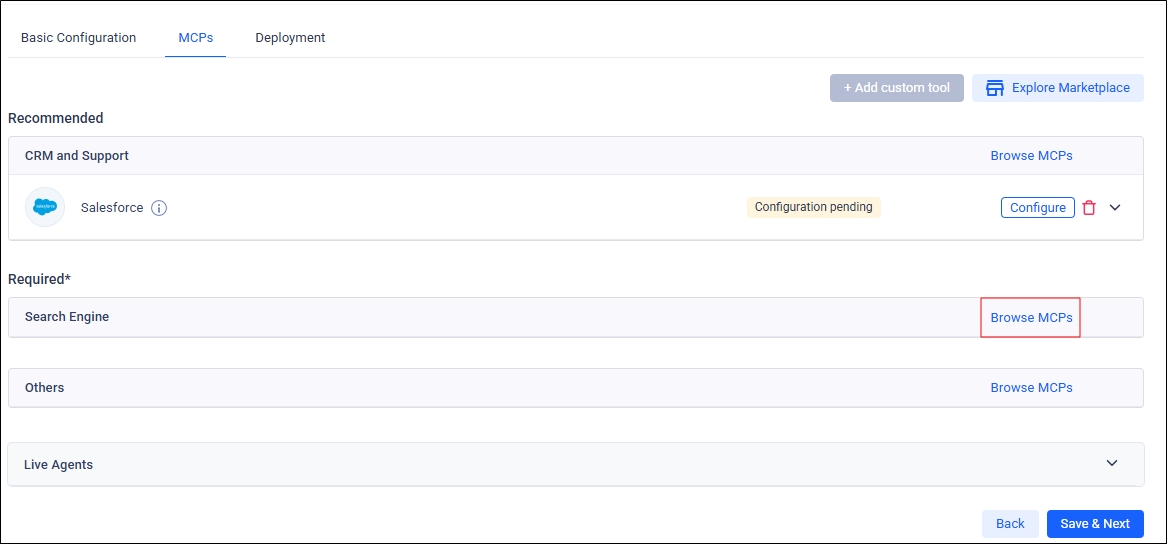
MCPs are specialized apps required for your agent to function properly. The MCP that is absolutely required is the search client in the Required section. The MCPs in the other sections–Recommended, Others and Live Agents–are optional. This document covers each section as it appears on the screen.
Recommended
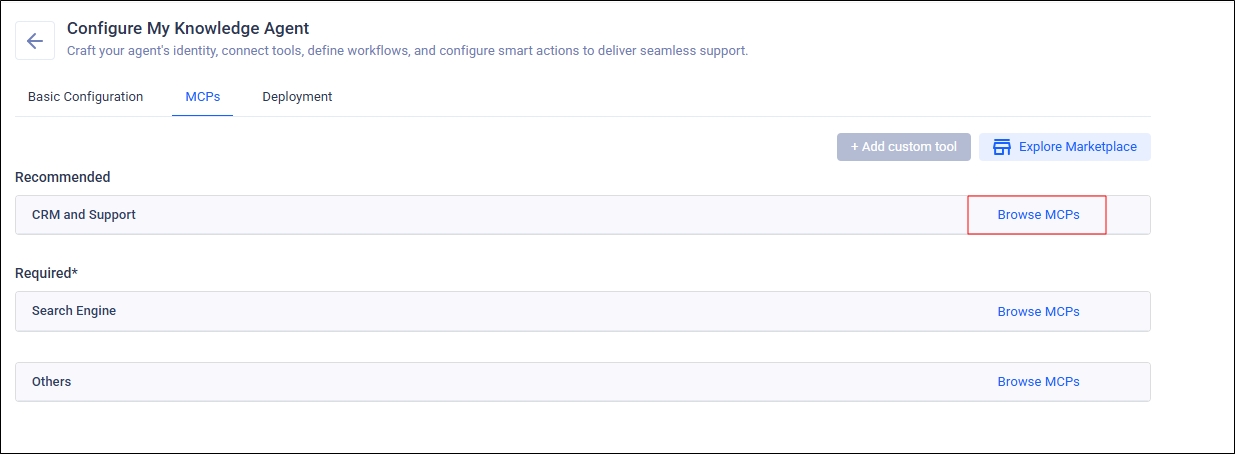
Click Browse MCPs.
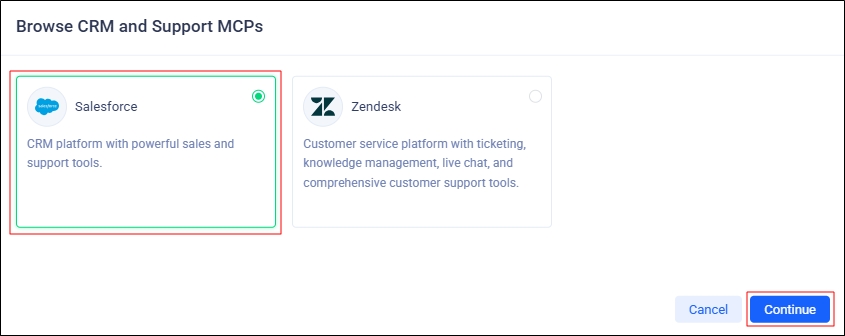
Select Salesforce and click Continue.
Note: Zendesk isn't supported yet.
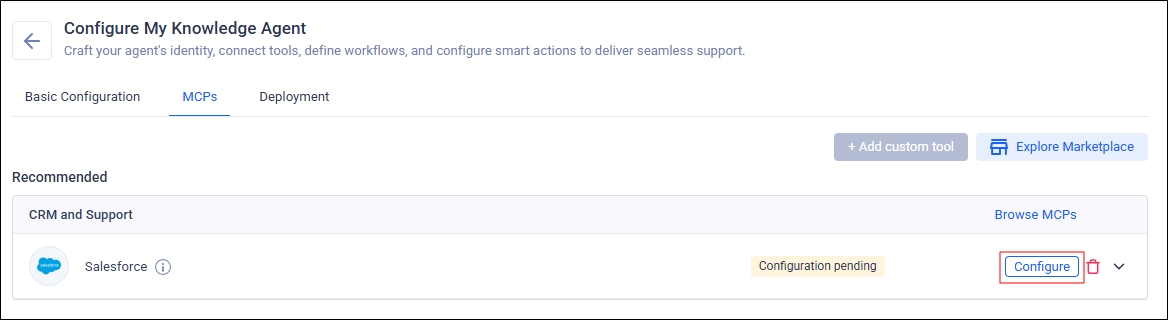
You will land on the MCPs screen again. Click Configure.
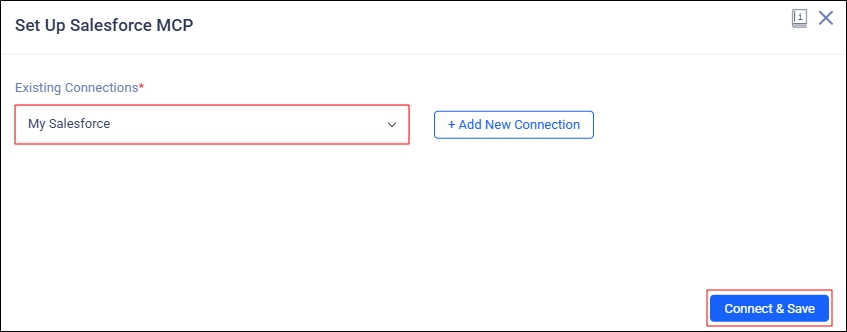
Select a saved Salesforce connection from the Existing Connections list and click Connect & Save.
If you are setting up the agent for the first time and there are no saved orgs or if you want to connect the agent with a new org, then click Add New Connection.
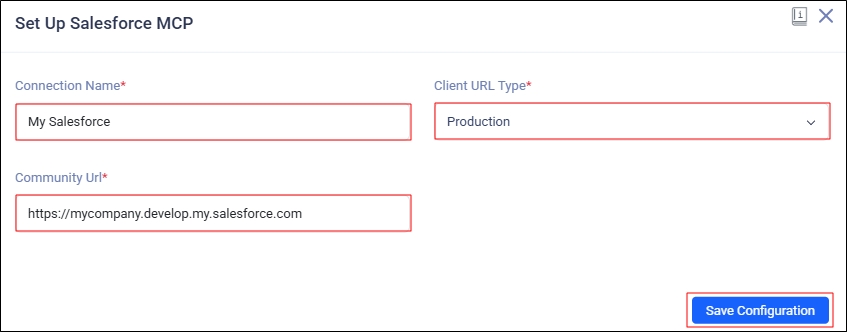
Enter the following details:
Connection Name - A name for your Salesforce org.
Client URL Type - Select either Production or Sandbox.
Community URL - Enter the URL of your Salesforce org.
Click Save Configuration. A pop-up will display. Authenticate your org.
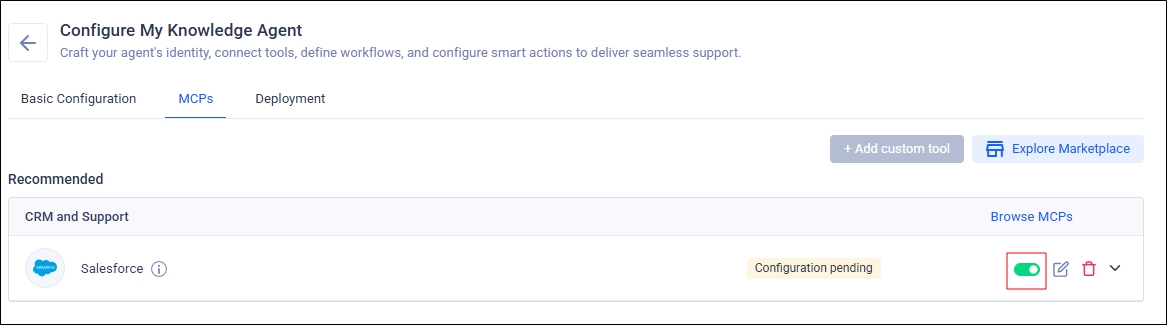
Toggle on the MCP to activate it.
Optional Configuration
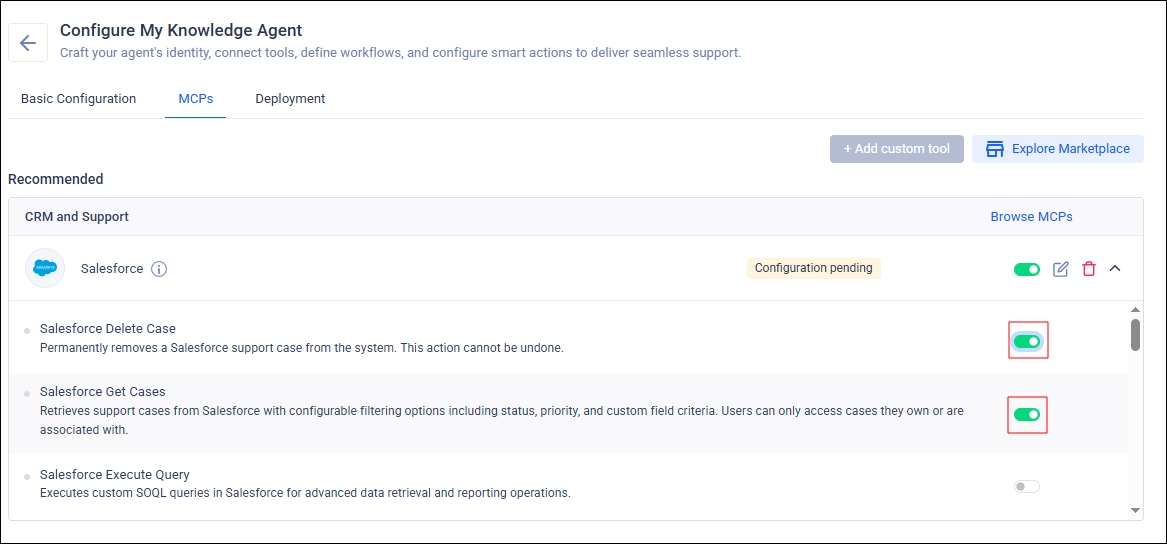
Expand the MPC Configuration screen and activate the features you need.
You can edit the connection details or delete an MCP using the Edit or Delete buttons.
Required
These are the MCPs that are essential for the agent to function. Currently, the only MCP supported in this section is the Salesforce search client.
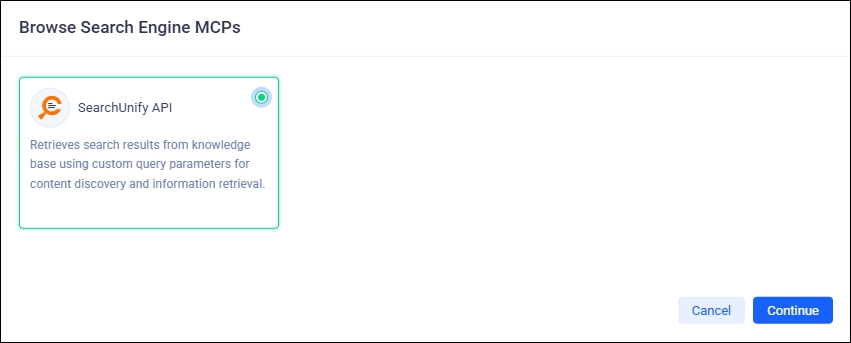
Click Browse MCPs.
Select SearchUnify, and click Continue.
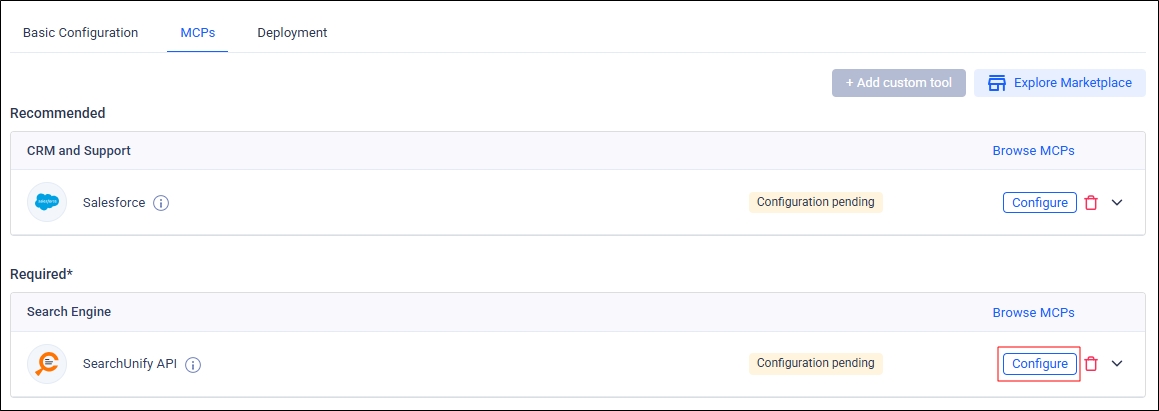
Click Configure.
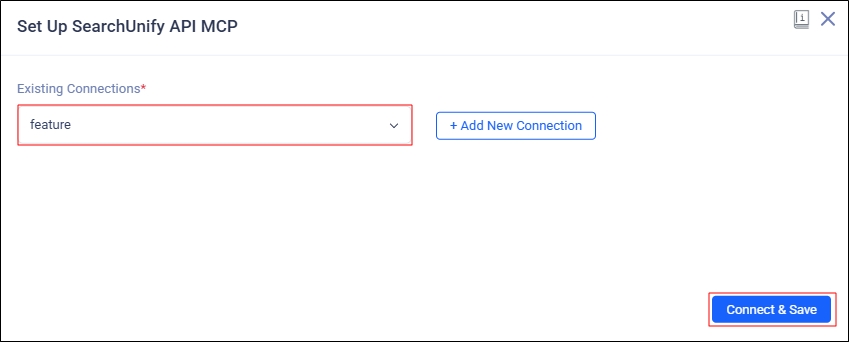
From Existing Connections, select a saved Salesforce search client and click Connect & Save.
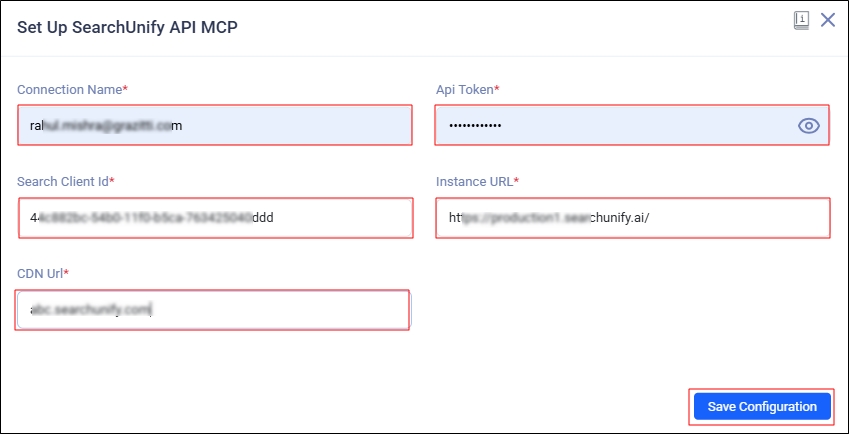
If you’re setting up the agent for the first time (no saved Salesforce search client connections) or want to connect a new one, click Add New Connection.
Enter the following details:
Connection Name - Enter a label for your agent.
API Token - Enter the API Token. This doc explains how to get your API Token: API Token Generator
Search Client ID - Enter the UID of the Salesforce search client connected with the agent.
Instance URL - Enter the web address of your SearchUnify instance.
CDN URL - Download the Salesforce search client. Open the readme file. Find the CDN Endpoint and enter its value in this field.
Click Save Configuration.
Others
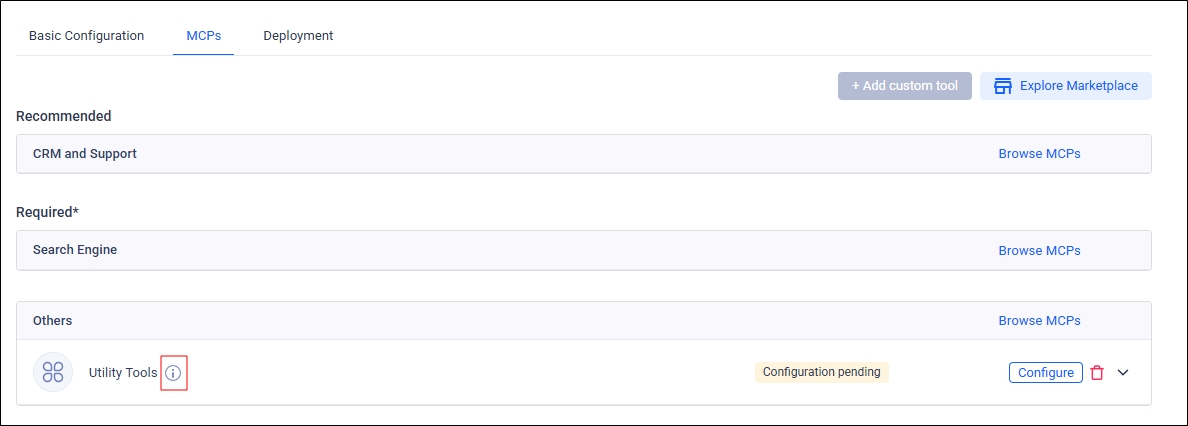
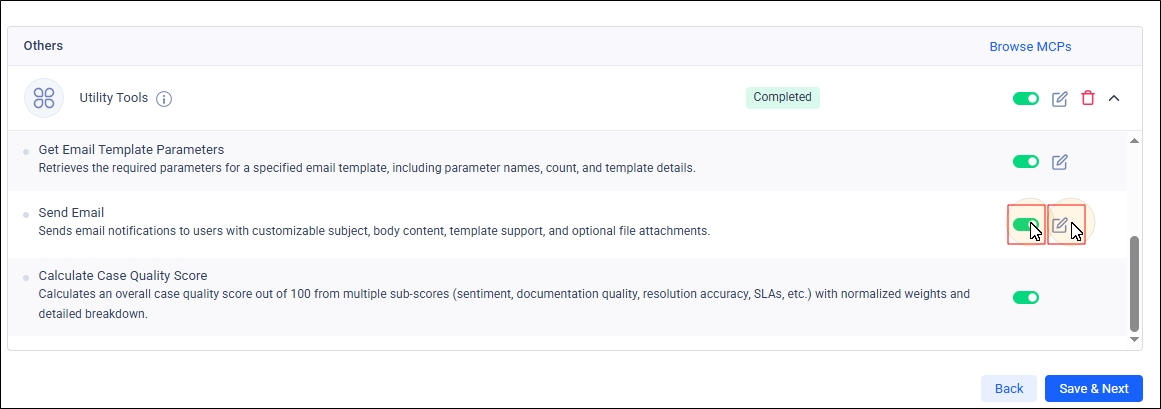
These MCPs provide SearchUnify-built features to the agent. You can view the complete list of features by clicking the information icon on Utility Tools.
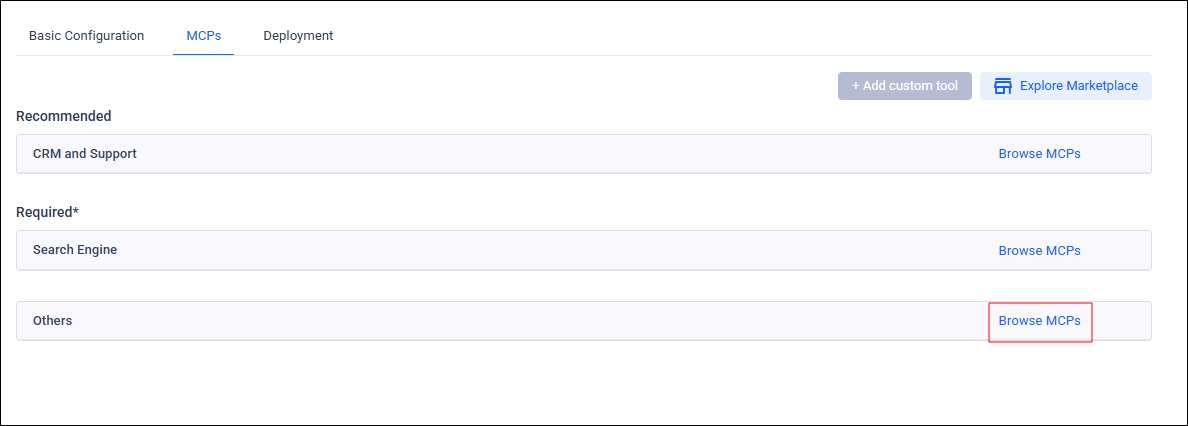
Click Browse MCPs.
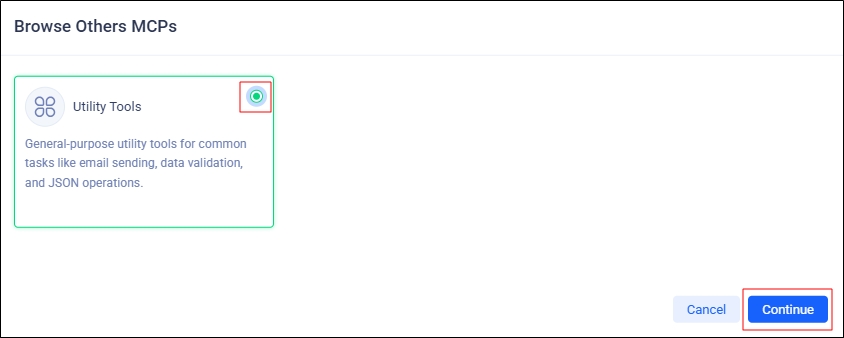
Select Utility Tools and click Configure.
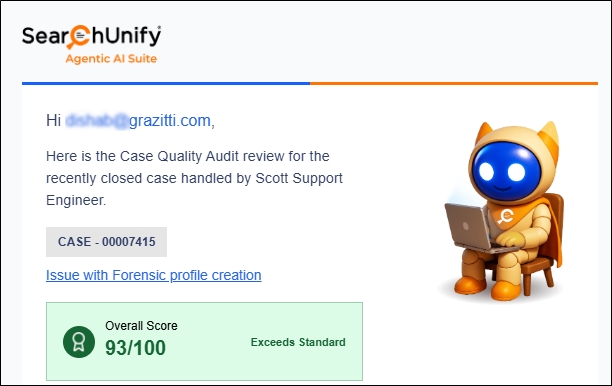
If you're configuring Case Quality Analysis, it's essential to activate Send Email in order to obtain Case Quality Audit reports on email.
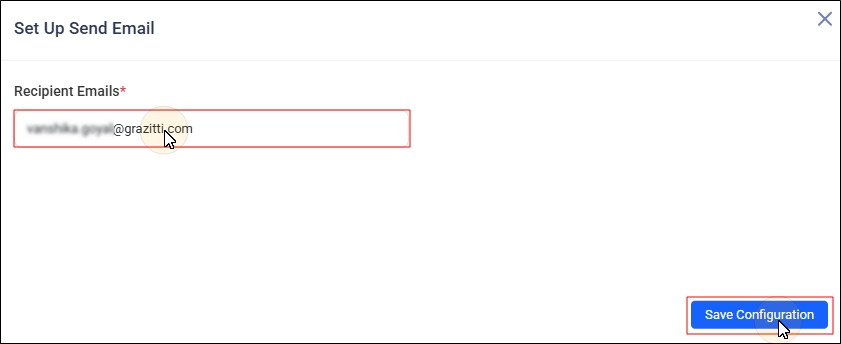
To configure Send Email, active the configuration and click the Edit button.
Enter the email who will receive the Case Quality Audit reports. Click Save Configuration.
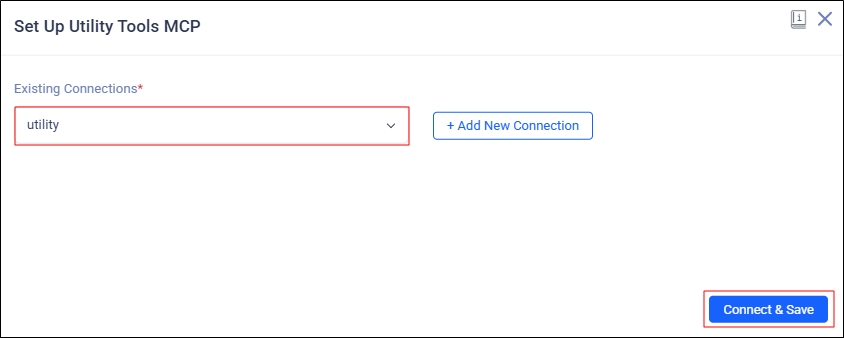
From Existing Connections, select a saved tool and click Connect & Save.
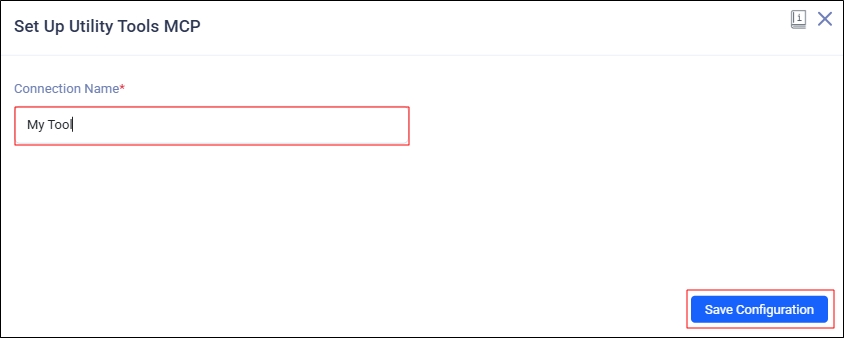
To add a new utility tool, then click Add New Connection.
Enter the name of your tool in Connection Name and click Save Connection.