

Select an Authentication Method for API Content Source
The API Content Source can be authenticated using four methods. This article provides an overview of all four methods:
No Auth
Select No Auth if authentication details are not required for your content source connection. When No Auth is selected, only public data is crawled.
After selecting No Auth, choose either GET or POST as your API Method Type.
In the Authentication Header field, enter {} or any valid header:
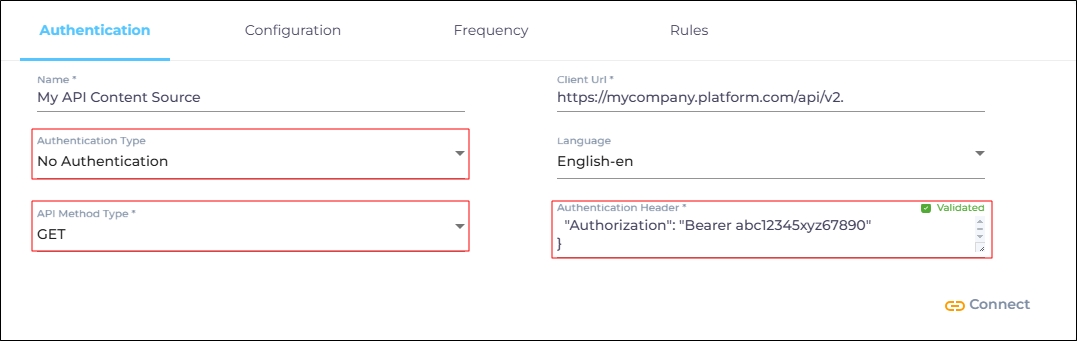
Fig. A snapshot of "No Authentication" selected in the Authentication Type field for the API Content Source.
Click Connect.
Now return to Set up a Content Source with API
Basic Auth
Select Basic Auth to authenticate your content source connection using a username and password. When Basic Auth is selected, only the data accessible to the user whose credentials are entered will be crawled.
After selecting Basic Auth, choose either GET or POST as your API Method Type.
In the Authentication Header field, enter {} or any valid header. An example of a header:
authentication_header
Connection: 'keep-alive',
'Upgrade-Insecure-Requests': '1',
'User-Agent':'{{your user agent}}',
Accept: 'text/html,application/xhtml+xml,application/xml;q=0.9,image/webp,image/apng,/;q=0.8',
'Accept-Language': 'en-GB,en-US;q=0.9,en;q=0.8'
Enter your username and password in the Username and Password fields. SearchUnify will crawl only the data that the entered user has access to.
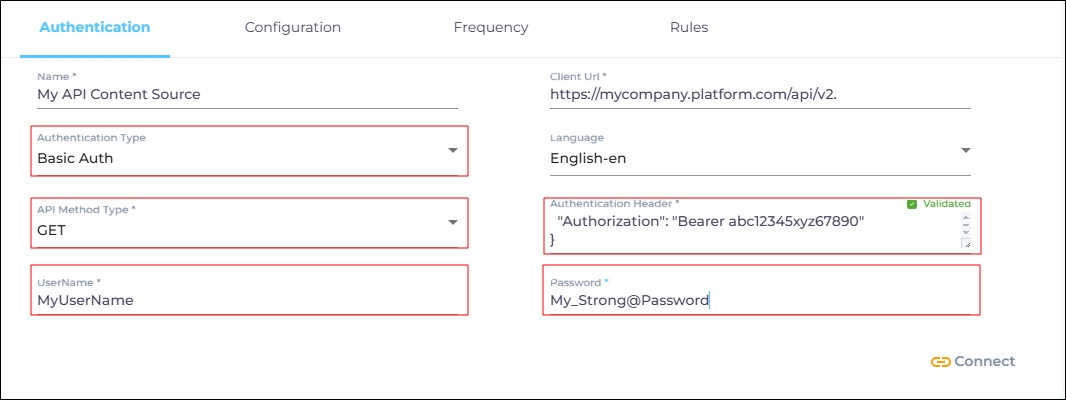
Fig. A snapshot of "Basic Auth" selected in the Authentication Type field for the API Content Source.
Click Connect.
Now return to Set up a Content Source with API
OAuth1
Select OAuth1 to authenticate your content source connection using a consumer key and consumer secret. When OAuth1 is selected, only the data accessible to the user associated with the entered consumer key will be crawled.
After selecting OAuth1, choose either GET or POST as your API Method Type.
In the Authentication Header field, enter:
authentication_header{
"Authorization": "Bearer abc12345xyz67890"
}
Replace abc12345xyz67890 with your actual bearer token.
Enter the following details:
-
Consumer Key: Enter the consumer key.
-
Consumer Secret: Enter the consumer secret.
-
Token: Enter your access token.
-
Token Secret: Enter the token secret.
-
Realms: Enter your username.
-
Signature Method: Select an encryption method if it’s mandated on your content source:
-
No Signature: No encryption.
-
HMAC-SHA1: Secure encryption.
-
HMAC-SHA256: Latest and the most secure. (recommended).
-
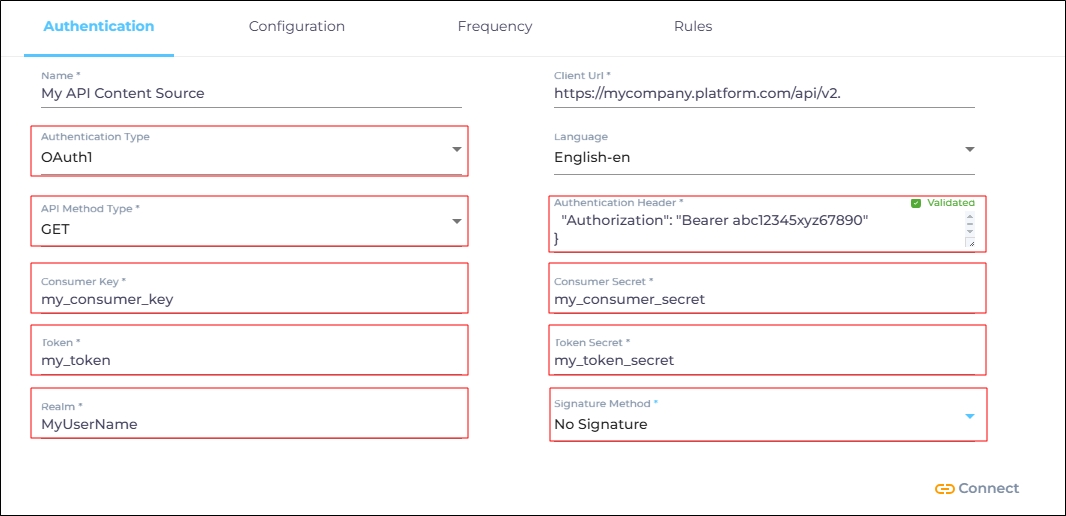
Fig. A snapshot of "OAuth1" selected in the Authentication Type field for the API Content Source.
Click Connect.
Now return to Set up a Content Source with API
Token
Select Token to authenticate your content source connection using a Token URL. When Token is selected as the authentication method, then the data accessible with the token can be crawled.
After selecting Token, choose either GET or POST as your API Method Type.
In the Authentication Header field, enter:
authentication_header
authentication_header{
   "Content-Type": "application/x-www-form-urlencoded"
}
Enter the following details:
-
Authentication Token URL: The URL from which the token can be accessed.
-
Authentication Request Body: Enter the authentication request body in the following format:
-
Method: Specify either GET or POST. The Body section is required if you choose POST, but it’s optional if you select GET.
-
Headers: Use the headers as displayed in the code below. Replace <field that stores the access token> with the name of the field where the access token is stored.
-
QueryString: Include the username and password along with the query to personalize results for users.
-
Body: Enter the details required by the API for the POST request in the Body section.
Copyauthentication_request_body {
"method": "POST",
"headers": {
"Content-Type": "application/x-www-form-urlencoded",
"authorization": "Bearer ${response.<field that stores the access token>}"
},
"queryString": {
"username": "XSiWwREUx:eGF{DxKu1d5w,K]S2pza",
"password": ":wpM4X0G@PY_2H[@Q1[E!?wJ*V7[E"
},
"body": {}
} -
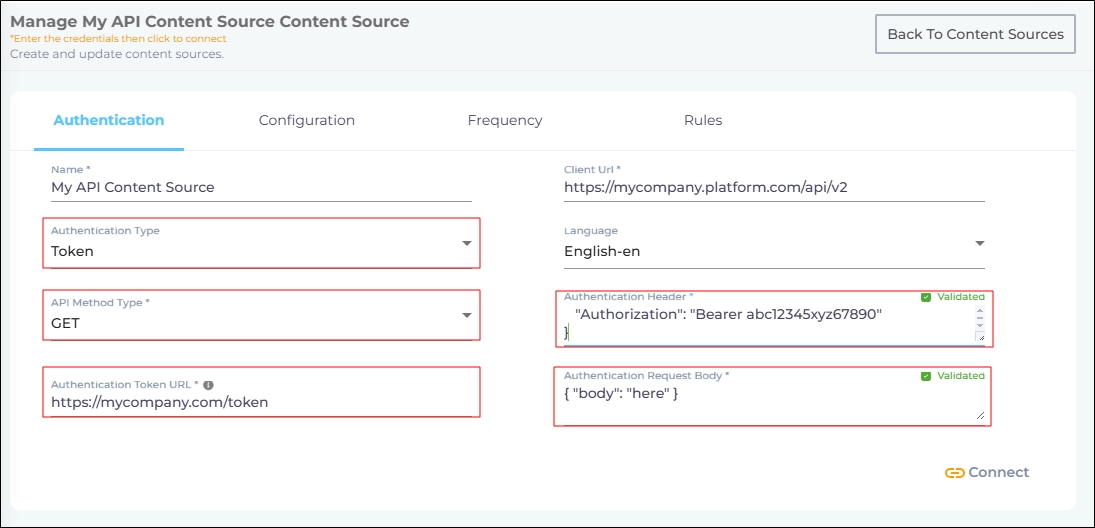
Fig. A snapshot of "Token" selected in the Authentication Type field for the API Content Source.
Click Connect.
Now return to Set up a Content Source with API