

Internal/External Email Tracking Enabled
The Internal/External Email Tracking Enabled setting in Search Clients > Edit > Analytics Settings > Analytics Properties allows you to configure four user types for the purpose of filtering Search Analytics data. The four user types are:
-
Internal User are the logged-in users with your company domain email (e.g., user@yourcompany.com). When this filter value is selected, analytics data is shown for:
-
Users who were logged in with the company domain email throughout the session.
-
Users who were logged in with the company domain email for part of the session. These sessions, where an Internal User isn't logged in for the entire session, are called Hybrid Sessions.
-
-
External User are the users logged in with an external email domain (e.g., user@othercompany.com) for the entire session. When this filter value is selected, analytics data is shown for:
-
Users who were logged out throughout the session.
-
Users who were logged in with an external email domain for the entire session.
-
Users who were logged in with the company domain email for part of the session, which are also considered Hybrid Sessions.
-
-
External-Only are the users who never log in with your company's domain email at any point during the session.
-
All are the internal and the external users.
Note: Internal, External, and External-Only user tracking only works on gated platforms. If your search client is publicly accessible, enabling this feature will not impact the analytics data.
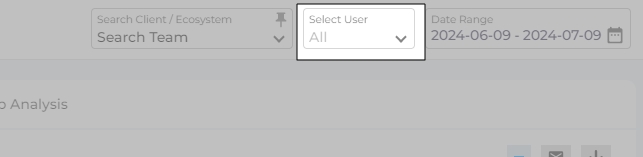
Fig. A snapshot of the Select User menu with all the four user types.
By default, the Select User dropdown is disabled. You can activate it by enabling the Internal / External Email Tracking Enabled setting.
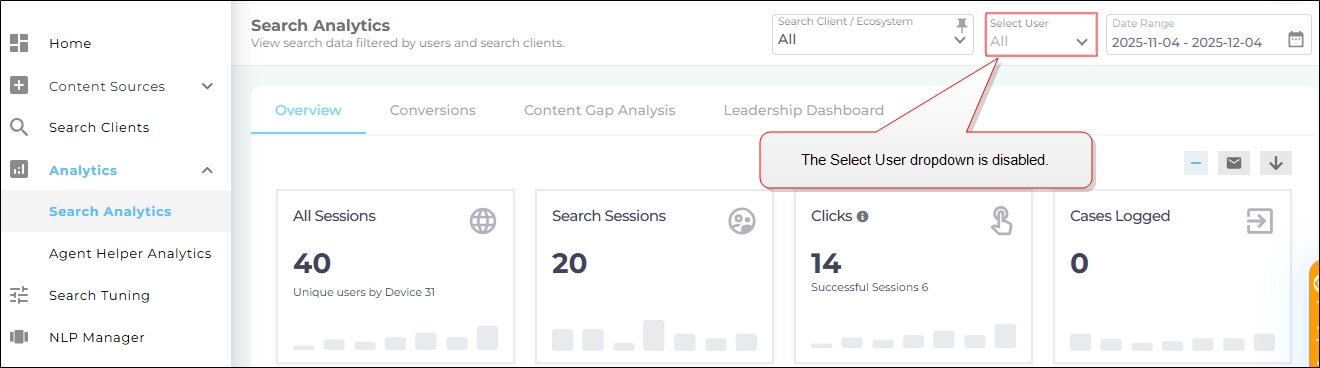
Fig. A snapshot of the disabled Select User menu. This is the default state.
Activate Internal / External Email Tracking Enabled
-
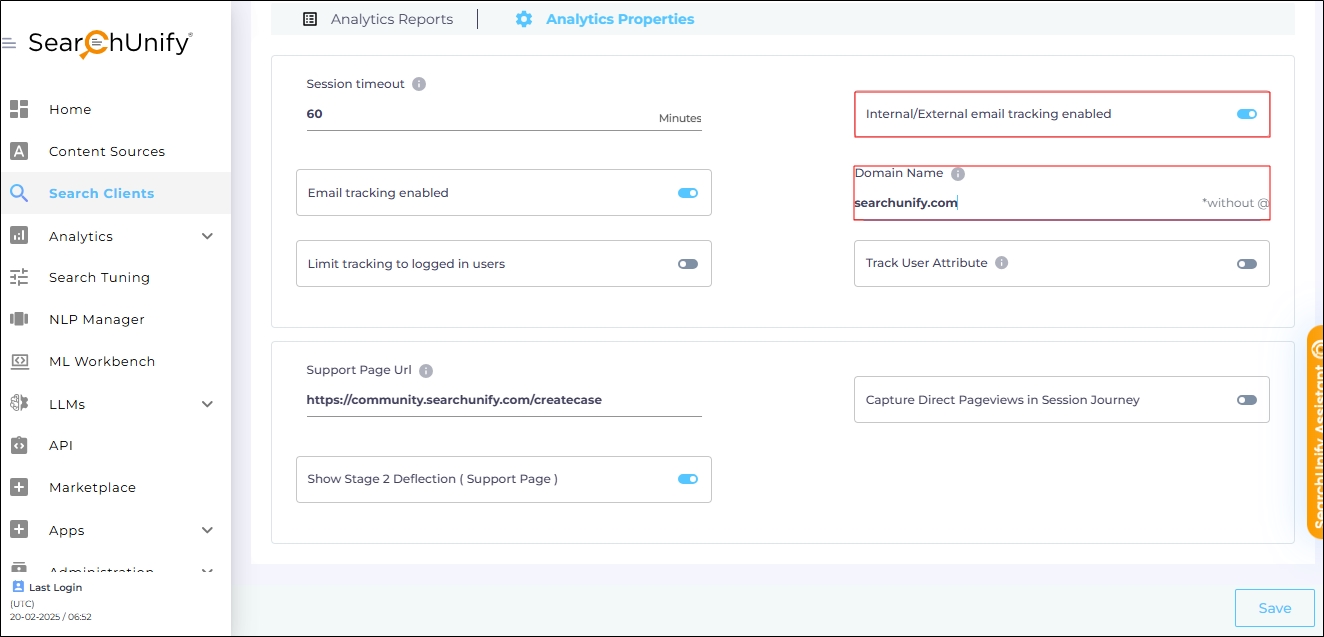
Navigate to Search Clients > Edit > Analytics Settings > Analytics Properties.
-
Toggle Internal / External Email Tracking Enabled to the right. A new field Domain Name will be displayed.
-
Enter your company domain name in the Domain Name field (e.g., searchunify.com). All logged-in users with emails from your company’s domain will be classified as Internal Users.
-
Scroll down and click Save to apply changes.