

Filter Analytics Data for Custom Metrics with Track User Attribute
The Track User Attribute setting in Search Clients > Edit > Analytics Settings > Analytics Properties enables tracking of custom user attributes during search sessions, along with standard events such as clicks, searches, and page views.
Use Case
Each organization has its own list of metrics. For example, one company may want to measure how often documents for product X are accessed, while another may want to track the usage of widget W. Such custom metrics—whether related to security groups, products, teams, or other attributes—can be defined and monitored using Track User Attribute.
How Track User Attribute Works
SearchUnify admins must identify a variable present in the search client environment and communicate it to the SearchUnify team. Track User Attribute feature in the admin panel can be used to collect and view data for users associated with the variable. This data (values of the attribute) is available in the Search Analytics reports as a filter.
-
To view user activity data associated with a variable, go to Search Analytics.
-
Select the search client where Track User Attribute is active.
-
Scroll down to an analytics report.
-
Click the User Attribute filter.
-
Choose one or more variable values and click Apply. Note that only one variable with a maximum of 100 values is supported for each search client.
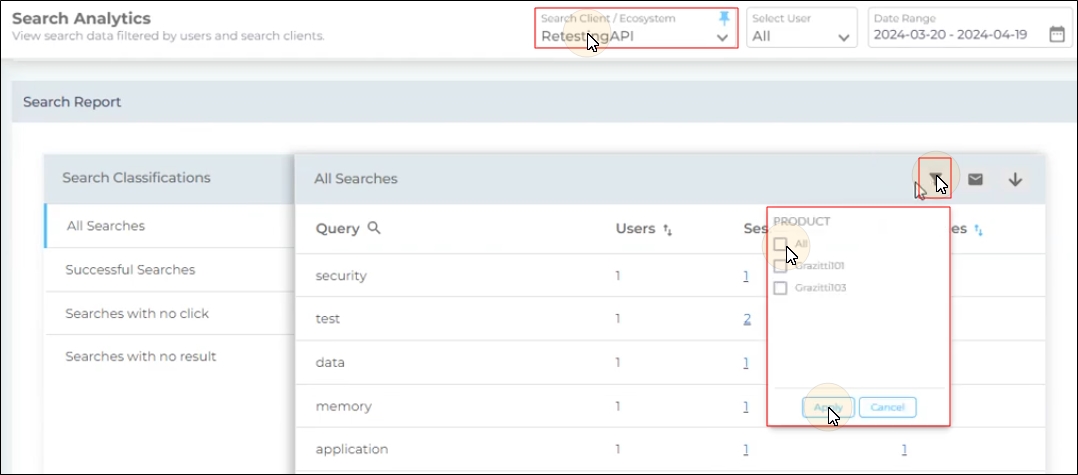
Fig. A snapshot of the User Attribute filter in analytics.
Enable Track User Attribute
-
Navigate to Search Clients > Edit > Analytics Settings > Analytics Properties.
-
Toggle Track User Attribute to the right.
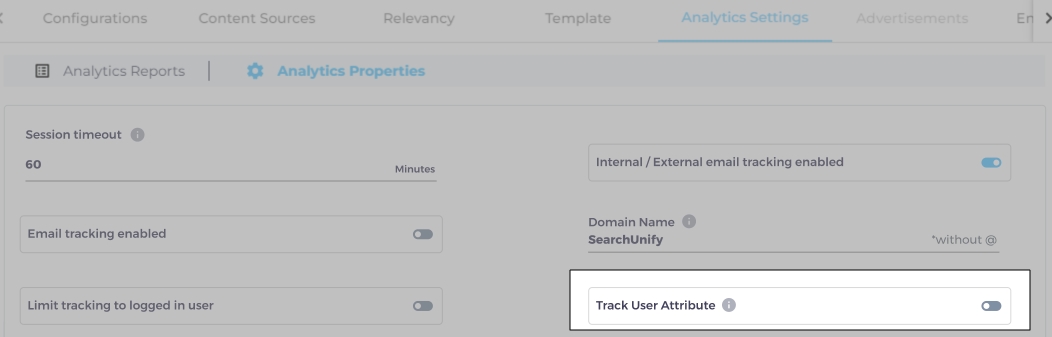
Fig. A snapshot of the Track User Attribute toggle in Analytics Properties.
-
After enabling Track User Attribute, a dialog box with two fields appears
-
Label: This is the category name that shows up in Search Analytics reports. Labels help categorize data for easier filtering. You can activate, deactivate, or edit these labels at any time, with changes reflected immediately in reports. If a label has more than five values, a search box will appear in the reports for more efficient filtering. Additionally, the Last Selection feature allows you to apply previously selected values to a report
-
Variable: This is a JavaScript function that captures values for the Label. A JavaScript developer can use window.object to store user attribute values. The Variable fetches these values and associates them with the Label. For example, if window.product captures product usage data, it can be linked to the "Product" label.
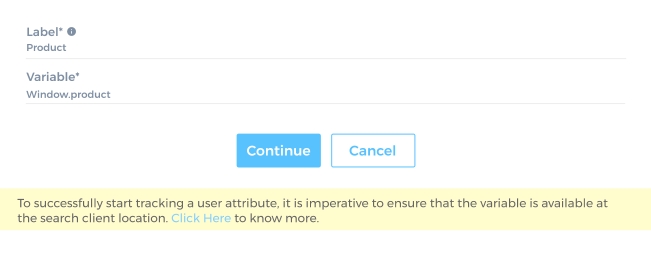
Fig. A snapshot of the Track User Attribute configuration dialog.
-
-
Enter values for the Label and Variable, then click Continue.