
Enable and Disable Analytics Reports in a Search Client
Analytics Reports is the first tab under the Analytics Settings tab. It offers more than thirty reports, organized into three categories for:
-
Community Managers
-
Content Teams
-
Support Teams
To quickly set up analytics, select the category that best matches your role. You can customize your selection by picking reports individually. For example, after selecting Community Managers, you can remove or add specific reports as needed. You can read about what each analytics report is capable of in Search Analytics.
Activate Search Analytics
- Open the search client you want to edit, then navigate to Analytics Settings.
-
Select the reports you want to enable. You can enable the reports one by one or select an entire category. Four report categories are available:
-
All: Select this option to enable all the reports in all the categories.
-
Community Manager: Select this category if you are a community manager. It enables all analytics reports designed for community management.
-
Content Teams: Select this category if you are a content manager. It enables analytics reports relevant to content creation and optimization.
-
Support Teams: Select this category if you manage a support team. It enables analytics reports tailored to support operations and performance monitoring.
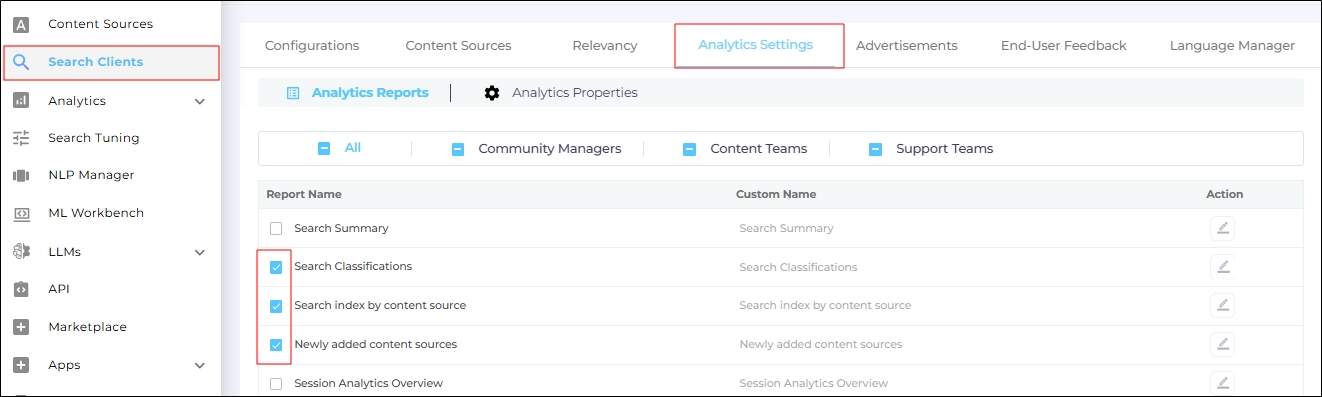
Fig. A snapshot of report selection in Analytics Settings.
-
- Scroll to the bottom of the page and click Save to apply the changes.
Change Report Labels
Customizing report labels has both advantages and disadvantages.
Pros of Changing Report Labels
-
Flexibility: You can align report names with the terminology used across your organization.
-
Consistency: If your team refers to a content source as a "data repository" or "server," renaming Search Index by Content Source to "Search Index by Data Repository" or "Search Index by Server" can make the transition to SearchUnify smoother.
Cons of Changing Report Labels
-
Potential Confusion: Custom labels may make it harder to search official documentation, participate in the SearchUnify community, or communicate with the SearchUnify support team.
-
Workaround: To avoid confusion, use Report Names instead of Custom Names when seeking support or referencing documentation.
Changing a Report Label
-
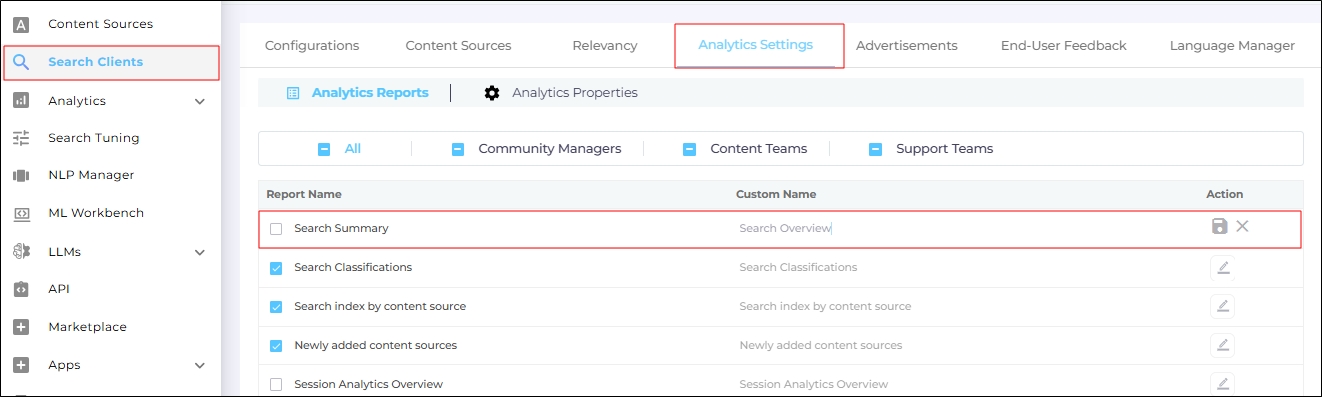
Click the Edit button.
-
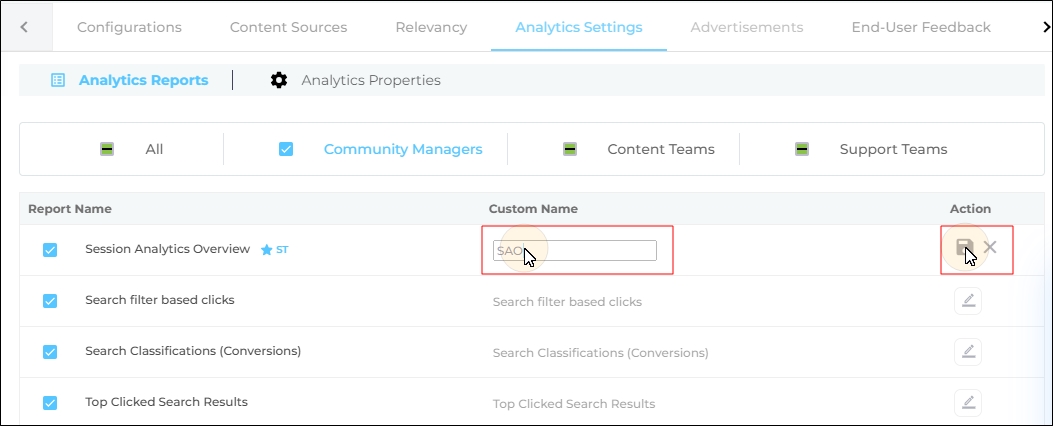
In the Custom Name column, enter a new label. Example: Renaming Search Analytics Overview to SAO.
-
Click Save to apply the changes.