
Release Notes: SearchUnify Q1 '26
We’re excited to introduce our first release of 2026, bringing updates in SearchUnify, Agent Helper, and the Agentic AI Suite. This release focuses on strengthening analytics, expanding AI capabilities, and improving quality and workflow management for support teams. The key highlights of this release are listed next.
Key Highlights
-
Support for AWS Bedrock as a new LLM integration option
-
Display of long-term SearchUnifyGPT usage trends in the Engagement Trends report
-
New Tags Trends Analysis reports in Agent Helper
-
Mean Time to Resolution (MTTR) Metrics and Agent-wise Adoption Overview reports in Agent Helper
Core Search
Discover Long-Term Engagement with SearchUnifyGPT with Engagement Trends
A new sub-report Engagement Trends has been introduced in the SearchUnifyGPT Engagement report to provide long-term user engagement patterns for the answers generated by SearchUnifyGPT. The report displays the user engagement with answers, citations, and the copy function over a month or a quarter. You can view up to five metrics or only the Engagement Percentage for a month or a quarter using the View All Metrics toggle.
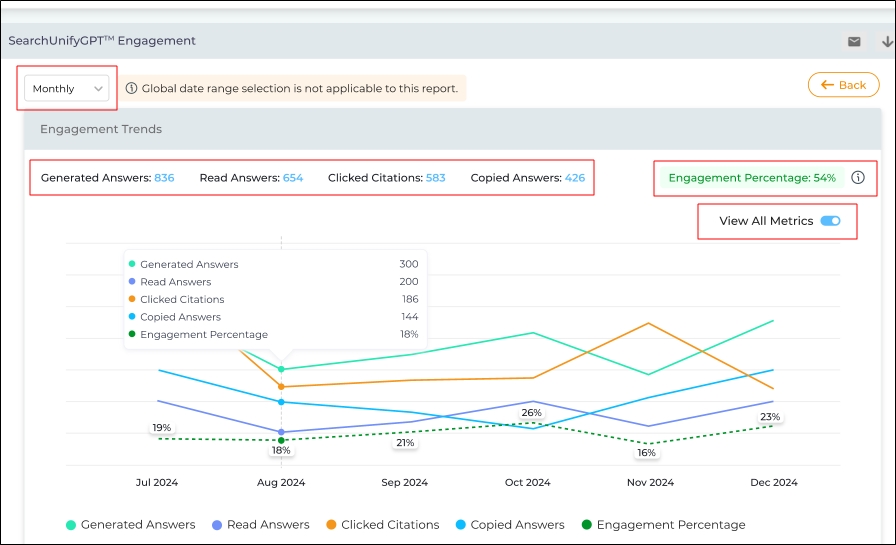
Fig. A snapshot of the Engagement Trends report.
More information: SearchUnify GPT Engagement Trends
No Real-Time Vectorization for Accurate Comparisons When A/B Test Is Active
The A/B Test feature allows SearchUnify admins to run search variants (keyword, neural, and hybrid) on a search client to see which variant leads to a higher click-through rate (CTR), average click position (ACP), and case deflection. For example, if the variants are keyword and neural on a search client, all the queries on that search client are split equally between keyword search and neural search. During the testing period, the CTR, ACP, and Deflection for each variant are measured. These tests help the SearchUnify admins select the suitable search variant for their community and base their decisions on concrete data.
Previously, this testing had a drawback. Neural search and hybrid search ran on vectorization, which occurred in real-time. While the A/B testing was active, the addition of new data in content sources or removal of old data from content sources triggered vectorization. As a result, vector snapshots changed in real time, which caused inconsistency in results.
For example, a user searching for a keyword in the morning found one set of results from vector snapshot S1 and another user searching for the same keyword in the evening found another set of results from vector snapshot S2. To address this issue and produce consistent, stable, and reproducible results, real-time vectorization is now disabled on search clients where A/B testing is active.
Instead of real-time vectorization, frequency-based vectorization is now employed so that the search variants (hybrid and neural) can be tested on a single vector snapshot. Under frequency-based vectorization, vector snapshots are created daily, weekly, or at intervals defined by the SearchUnify team.
More information: Implementing A/B Test for Search
AWS Bedrock as a New LLM Integration Option
SearchUnify admins now have more LLMs to choose from. AWS Bedrock has been added to the Bring Your Own LLM section in LLM Integrations. To use it, integrate AWS Bedrock as a new LLM option in Search Clients > Edit > Configurations. The integration supports secure connection setup through two authentication methods:
-
Basic Authentication
-
AK/SK Authentication
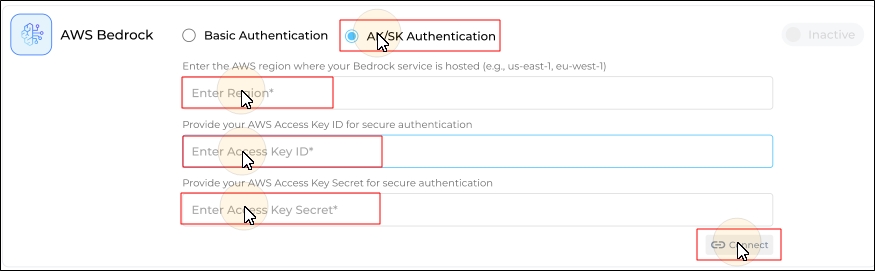
Fig. A snapshot of the AWS Bedrock
More information: Configure LLM Integrations
Improved Error Messages When No Results Are Found
The Click Here to Clear Results button no longer appears when a search query—rather than a filter—causes the search client to fail in finding results. The search client cannot locate any relevant results under the following two conditions:
No document was found with the keyword searched by the user. There is no information about the query in the entire knowledge base.
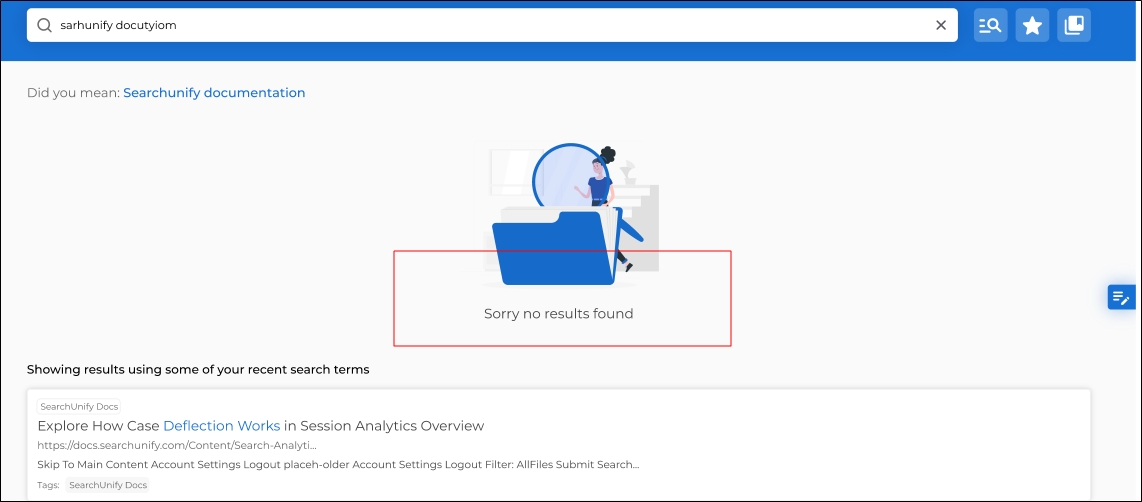
Fig. A snapshot of the error when no relevant results are found in the content source for the user query.
No document was found with the keyword searched by the user when a filter was applied. There is no information about the query when the conditions specified by the filter are met. For example, a user may not find a document in the selected content source or date range.
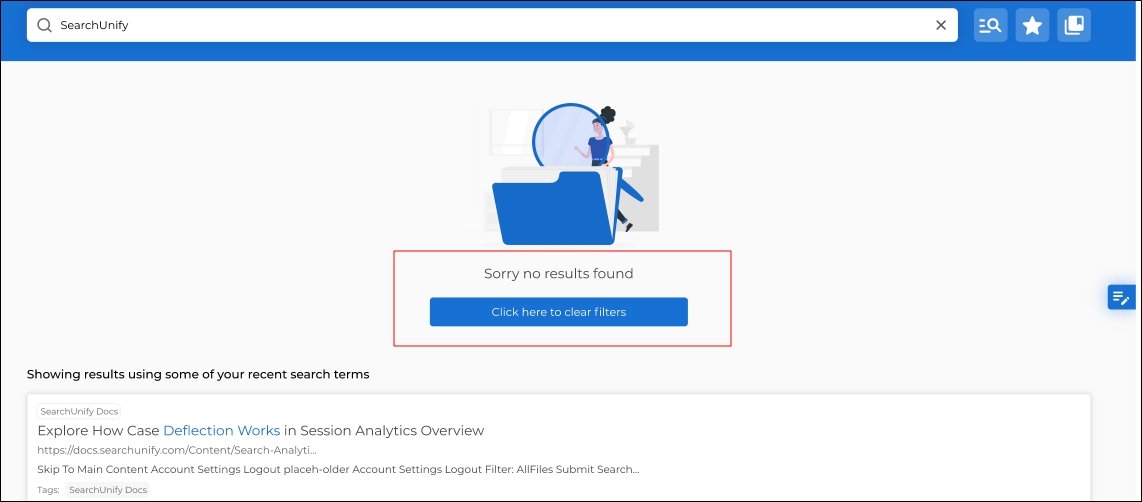
Fig. A snapshot of the error when no relevant results are found under the conditions defined by the filter. Users can find results after clearing the filters.
When no results are found anywhere in the knowledge base, the "Click Here to Clear Results" button is no longer displayed. It was previously shown in both scenarios, but the button was unhelpful when the desired document did not exist in the content sources. Empty searches are now considered under condition one, and the button is not shown. Users can modify their search query to find results.
Contextual Search Tips for Hybrid Search
The tips that help users search efficiently in the Hybrid Search mode are different from the tips that help them search efficiently in the traditional search mode. To reflect this change, Search Tips has been made dynamic. The users will see an updated set of search tips if Hybrid Search is turned on in your SearchUnify instance. The new tips will help users make the most of the Hybrid Search mode. Essentially:
-
When Hybrid Search is ON, users see updated search tips that encourage natural-language queries and explain semantic matching.
-
When Hybrid Search is OFF, the existing keyword-search tips remain unchanged.
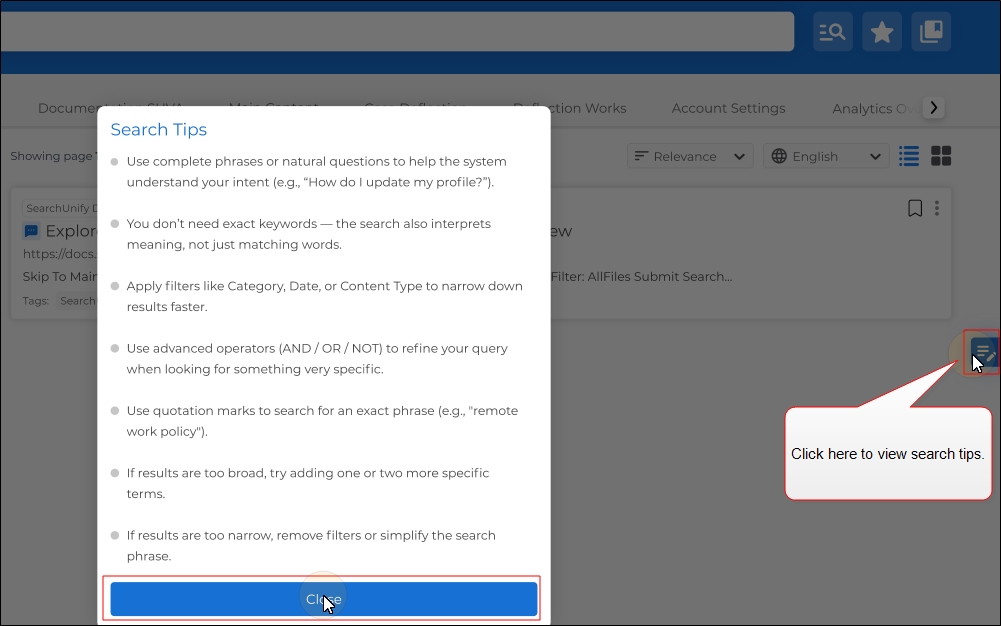
Fig. A snapshot of the Search Tips button on a search results page.
Find Tickets in Search Results by their Jira ID
Previously, users on SearchUnify were unable to find specific issues, epics, and tasks using their Jira ID because the search function relied on text matching and failed to distinguish Jira IDs from common keywords.
In this release, this shortcoming has been addressed through the use of regular expressions. Search clients can now intelligently recognize Jira IDs and prioritize tickets with matching IDs over ordinary keyword matches in search results.
This update will significantly assist users who frequently search for Jira tickets by ID.
More information: Use Jira as a Content Source
Dark Mode Deprecated to Provide Consistent UI Experience
The Dark Mode toggle in the SearchUnify Menu Bar has been deprecated and is no longer available in the admin panel. The Dark Mode button will disappear in the admin panels after a client upgrades their instance to Q1 ‘26.
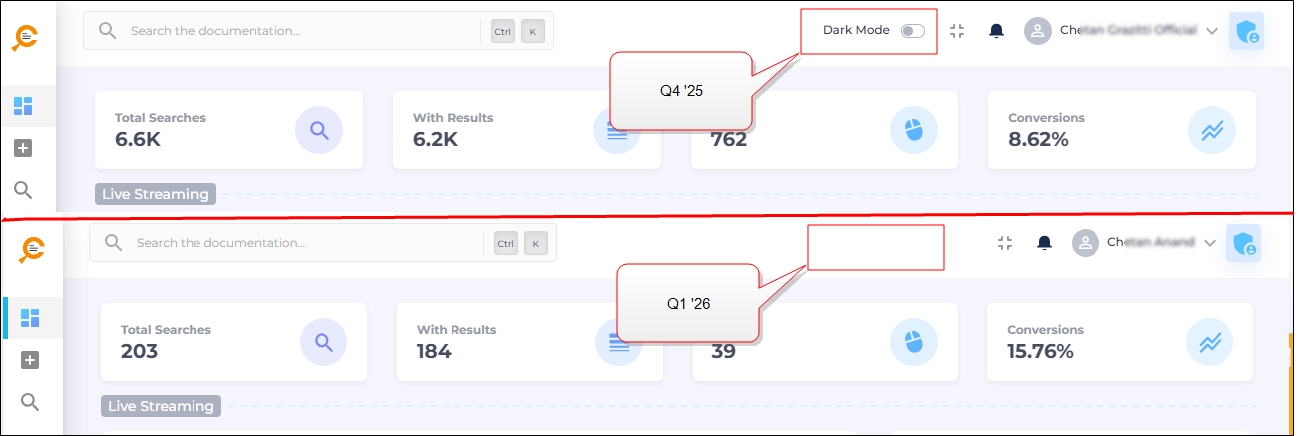
Fig. A snapshot of an admin panel without the Dark Mode button.
The decision to keep the Light-theme experience always-on has been taken in order to reduce UI complexity and provide a consistent UI experience for SearchUnify admins. The experience in Dark mode was inconsistent because it was broken across tabs. Instead of fixing each single tab, a decision was taken to discontinue dark mode temporarily. A more consistent dark mode will be introduced in future releases.
This deprecation doesn’t impact other features. All the admin preferences and data remain intact.
More information: Menu Bar
Agent Helper
View Case Resolution in Top Related Cases
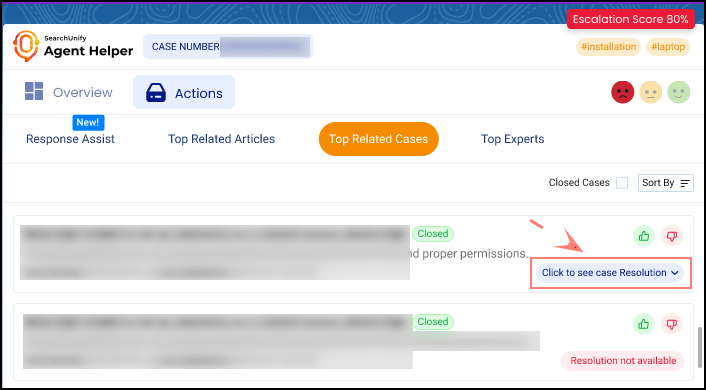
Agents can now view how a related case was resolved without opening the case. Each related-case card includes a View Case Resolution option that expands inline to display resolution details. Agent Helper surfaces the best available resolution source, including mapped resolution fields, close notes, or an AI-generated resolution, when structured data isn’t available.
Three New Reports in Agent Helper Analytics Overview
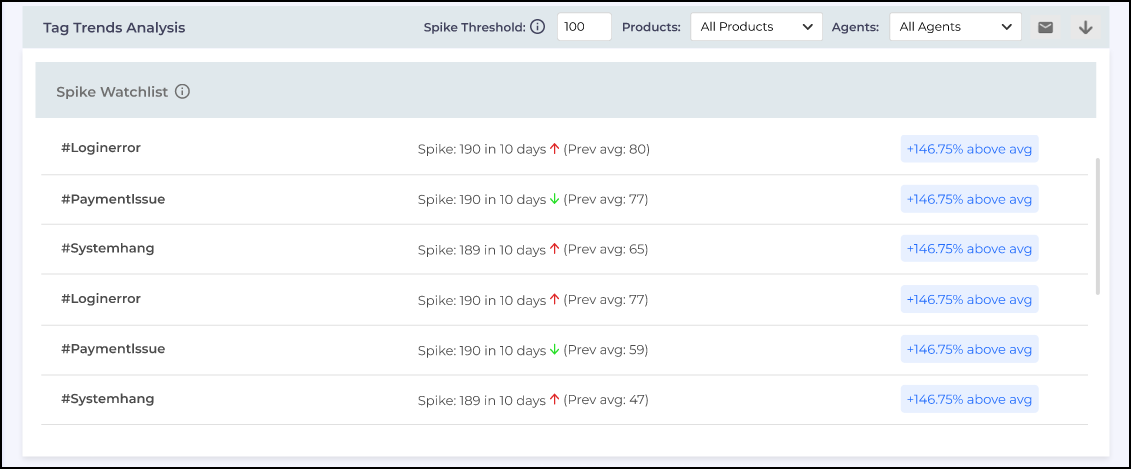
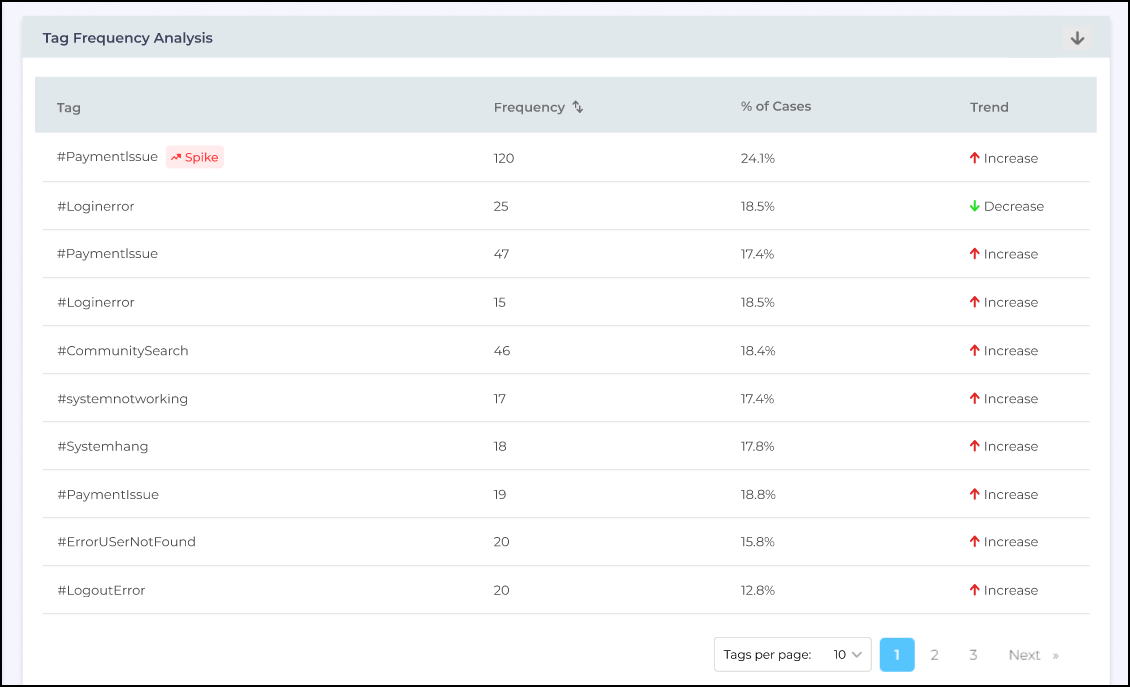
Tag Trends Analysis
The Tag Trends Analysis reports have been introduced to help support managers and admins track LLM-generated case tags and identify trending themes over time.
Three new reports provide rapid visibility into what’s trending and what’s changing:
-
Spike Watchlist: Tags showing significant spikes above a configurable threshold.
-
Top Combined Tags: The most common tag combinations to reveal related issue patterns.

-
Tag Frequency Analysis: Tag count, % of total cases, and trend direction for a selected period.
Mean Time To Resolution (MTTR) Metrics
This release introduces a new Mean Time to Resolution (MTTR) Metrics report that compares resolution times, with and without Agent Helper (AH) usage, for cases. This metric enables the leaders to quantify time savings. The metric also helps identify where AH accelerates resolutions and how its usage trends over time influence operational efficiency.
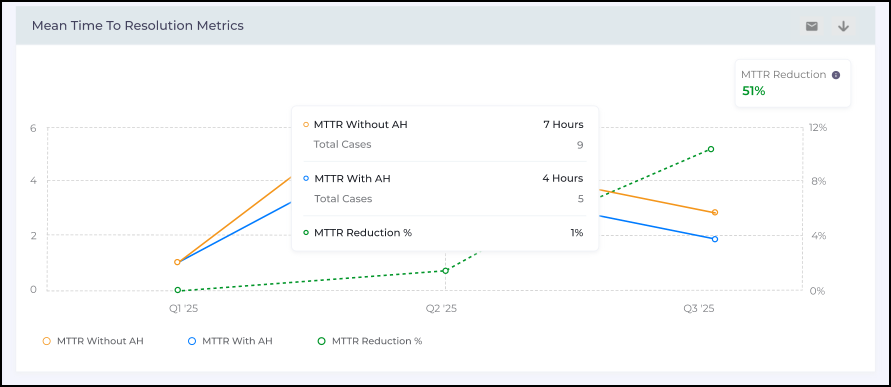
Fig: A snapshot highlighting the Mean Time to Resolution Metrics Report
Agent-wise Adoption Overview
The Agent-wise Adoption Overview report displays how individual agents use key Agent Helper features across their caseloads, helping managers spot power users, uncover low adoption, and prioritize targeted coaching to drive consistent feature usage across the team.
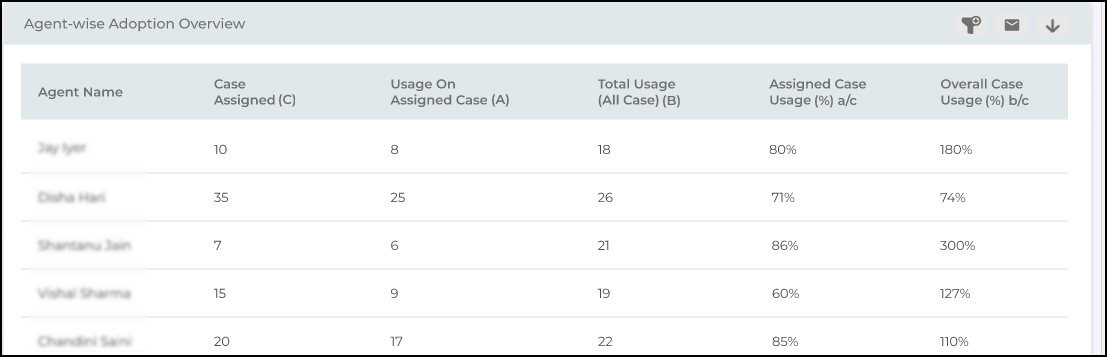
Fig: A snapshot highlighting the Agent-wise Adoption Overview Report
Flexible Case Summary Panel (Resize + Reposition)
The Case Summary panel is now more flexible. Agents can:
-
Resize the panel using the bottom drag handle (↕) with a resizable range of 20% (min) to 80% (max).
-
Reposition it by dragging the Case Summary header to swap it with the Case Timeline.
Simplified Case Summary View
The Case Summary experience has been streamlined by removing the Brief and Detailed options. The panel now presents a single Case Summary view with no mode switching.
Streamlined Feedback Collection on AI Outputs
Agent Helper now streamlines negative feedback collection with a lightweight Thumbs Down popup across all AI outputs. Agents can submit free-text feedback (minimum 30 valid characters). Agent Helper uses an LLM to infer the likely reason(s) and displays up to three informational chips when confidence is below a specified threshold.
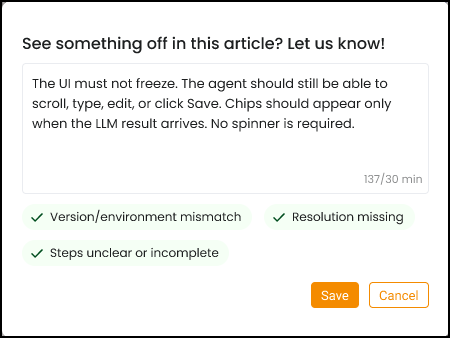
Fig: A snapshot of the feedback submission screen on negative feedback.
Post “Response Assist” Comments to Salesforce from Agent Helper
Agent Helper now lets support agents post Response Assist text directly to Salesforce Case Comments using the Add to Comment action. Once posted, the Case Timeline refreshes immediately to show the latest comment—reducing the need to switch to Salesforce for updates.
Note: This release supports text-only comments and is currently available only in Salesforce.
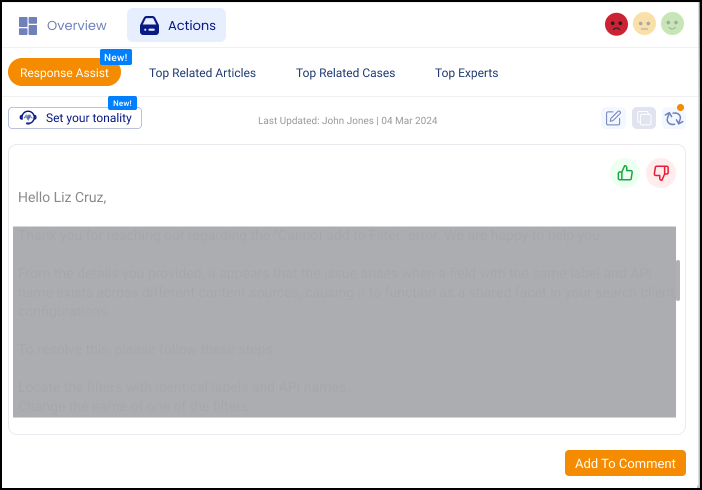
Dynamic Progress Loader with Indicators Launched in Agent Helper
Agent Helper now replaces the generic spinner with a step-by-step progress loader for Case Timeline, Case Summary, and Response Assist. The loader presents feature-specific status steps with clear visual indicators (active spinner, completed checkmarks, and pending circles), along with a progress bar and percentage and a dynamic footer message describing the current activity. Once processing is complete, the loader confirms completion with “All steps complete. Draft ready to insert.”
Agentic AI Suite
Agentic AI Suite Agents for Zendesk
We’ve expanded the Agentic AI Suite to Zendesk. Previously available only for Salesforce, all four agents in the suite are now supported in Zendesk.
Download Audit and Feedback Reports
Support Managers, QA Managers, and Customer Success Managers can download the complete Case Quality Audit Reports as PDF files using the Download Audit button in the Actions column.
Get Auto-Generated Case Quality Analysis in Email upon Case Closure
Once a case is closed, the case details are analyzed, and a Case Quality Score is given to the agent. Messages like Below Standard, Meets Standard, Exceeds Standard, or Human Reviewed are displayed.
Override Auto-Generated Case Handling Scores for Accurate Audits
You can override AI-generated quality scores for individual cases using the Eye Icon in the Actions column. Entering a Reason for Change is mandatory.
Version Management for AI Agent Instructions
Experiment with confidence using Instruction Versioning. You no longer have to worry about overwriting a perfect prompt; the system now stores your last 10 iterations automatically. Whether you need to rollback to yesterday's setup or rename a specific version, you can now manage all this directly from the Basic Configuration screen.
This functionality allows you to safely experiment with different configurations, while retaining the ability to quickly revert to previous setups and organize your iterations.
Other Updates
-
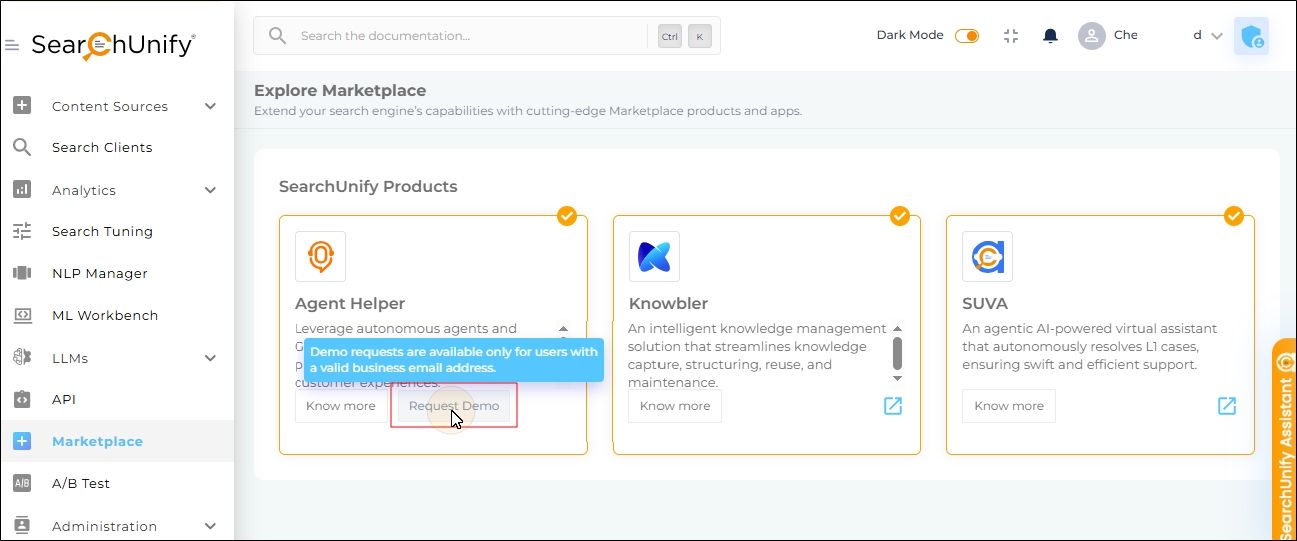
Demos are now limited to the users with valid business emails. If your email address ends in @gmail.com, @outlook.com, or another non-business domain, the Request Demo button will be disabled. Company subdomains, such as @support.company.com, are considered valid business emails.
Known Issues
-
Incorrect handover status in AI Support Agent. When the user hits “Connect to live agent” and the connection fails, the status still changes to “handover” instead of connection failure.
-
Customer journeys aren’t tracked in some cases. The issue occurs when multiple search clients are processed on one Salesforce org.
-
Configuration Incomplete message is displayed on content sources when an admin saves a content source without selecting any spaces. This issue can occur when the spaces don’t display because of a slow response from the content source APIs. For example, this message is displayed if an admin doesn’t select any Channel on the Vimeo content source. There are no channels visible in the image because SearchUnify hasn’t received a response from Vimeo’s APIs.